
Developer Docs
UI Design Guidelines
Shared visual direction and interaction rules for SnapTray capture tools, editing windows, and libraries.
Direction and status
The agreed direction is lightweight capture, focused editing, and one visual language. SnapTray should feel quiet, precise, and fast. Floating desktop tools remain compact; editing and management windows use stable layouts and predominantly solid surfaces.
This document records the design direction accepted on November 4, 2026. It is a target for incremental implementation, not a description of features already shipped. The generated concept board is illustrative: its labels, sample content, decorative details, and controls do not define backend capabilities. Existing behavior remains authoritative until a scoped change is implemented and verified.
The recording editor rollout is tracked in #214. Library consolidation and other product-wide improvements require their own implementation scope.
Surface families
| Surface | Treatment | Layout priority |
|---|---|---|
| Capture and pin toolbars | Restrained translucent surface through shared glass helpers, with reliable contrast over arbitrary content | Stay near the task without covering the active edit; keep common actions reachable |
| Editor, library, and settings | Solid neutral surfaces, subtle separators, limited elevation | Stable navigation, large content area, predictable settings location |
| Menus and dialogs | Shared controls and platform-appropriate window behavior | Clear purpose, concise choices, predictable dismissal and focus restoration |
Light and dark appearances should express the same hierarchy. Do not make editing windows translucent merely to match floating tools. Respect platform keyboard and window conventions while preserving shared product terminology and components.
Visual language
- Use neutral backgrounds and strong text contrast. Reserve the existing violet accent for the main action, selection, and focus; avoid filling every active control with violet.
- Use spacing, typography, and grouping before adding boxes around controls. Keep borders and shadows subtle, and corner radii consistent with shared tokens.
- Establish clear title, section, label, value, and supporting-text levels. Supporting text must remain readable in both appearances.
- Keep icon size, stroke weight, and alignment consistent with the existing icon system. Provide visible labels for important completion actions; tooltips supplement labels and expose shortcuts.
- Floating tools may be denser than settings windows. Verify their actual hit areas, spacing, overflow, and high-DPI behavior rather than shrinking controls to fit more tools.
- Use short, purposeful motion for state changes. Panel switching must not reset content, steal focus, or introduce unnecessary layout movement.
- Implement through
SemanticTokens,ComponentTokens, existing shared controls, andGlassRenderer/ toolbar style helpers. Change shared definitions deliberately instead of introducing local visual systems.
Capture and annotation
Separate drawing tools, contextual style controls, and completion actions. Keep Copy, Save, and Pin in a predictable action group; do not give every action primary emphasis. Less-used tools may use a labelled group or overflow menu.
Show tool-specific options in a stable location. Make it clear whether a change applies to selected annotations or to the next annotation. Preserve selection, input, and undo behavior when switching tools. Selecting an existing object should make its relevant editing controls discoverable.
Toolbars must avoid covering the active region or selected object where practical, remain inside the available screen, and provide usable overflow. Pin controls should expose zoom, opacity, annotation, and additional actions when needed while leaving the image prominent at rest. Special modes such as click-through and Live Update need recognizable status and a discoverable exit.
Library direction
Use a common browsing language for screenshots and recordings: navigation, search, sorting, thumbnails, selection, preview, and contextual actions. A proposed shared entry point can distinguish All captures, Screenshots, and Recordings without requiring their storage models to merge.
Distinguish editable projects from exported media with understandable labels. Clarify what opening, saving, or deleting an item affects. Avoid placing a full row of action buttons on every thumbnail. Search, favorites, renaming, and batch operations are candidate work, not assumed existing capabilities.
Recording editor
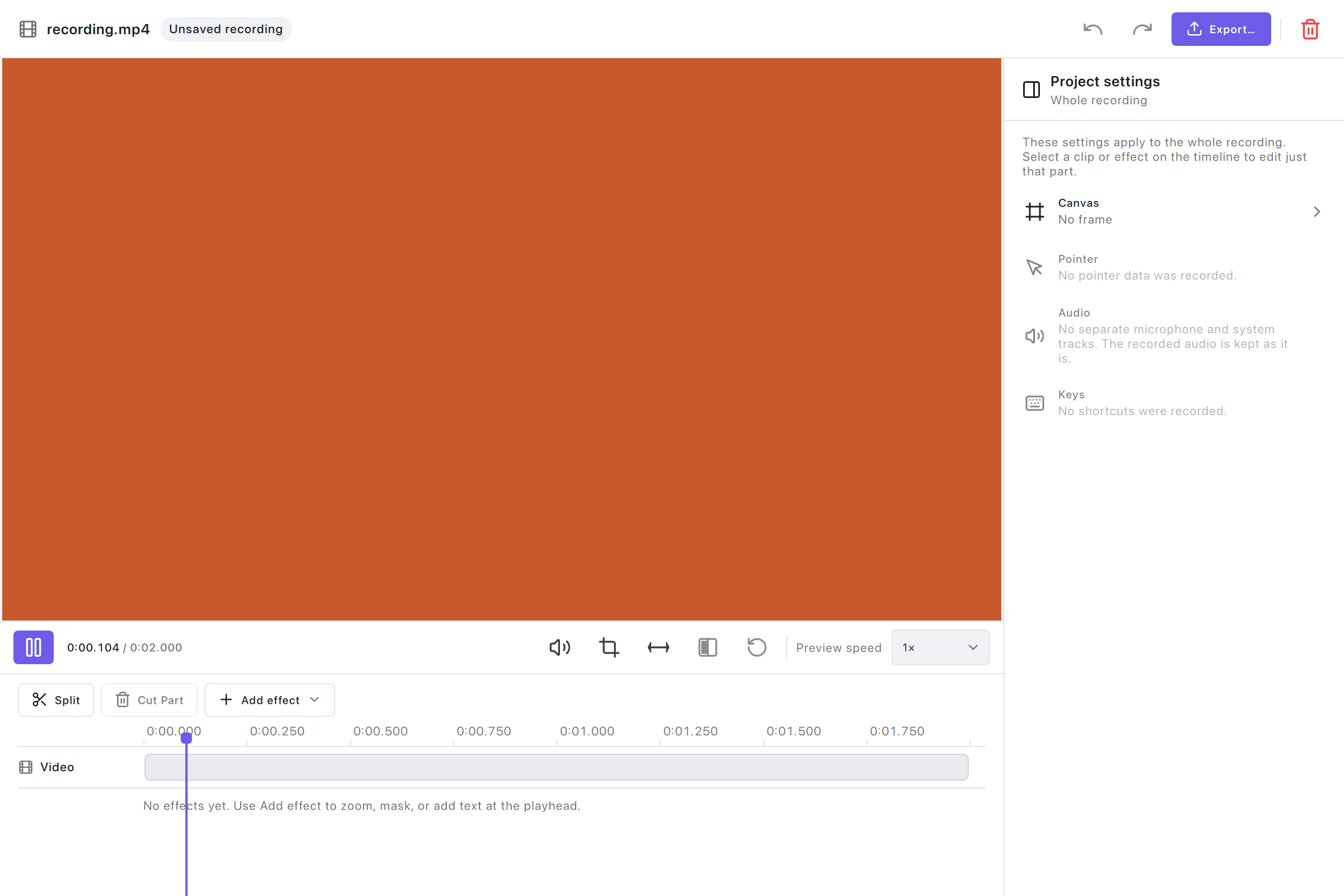
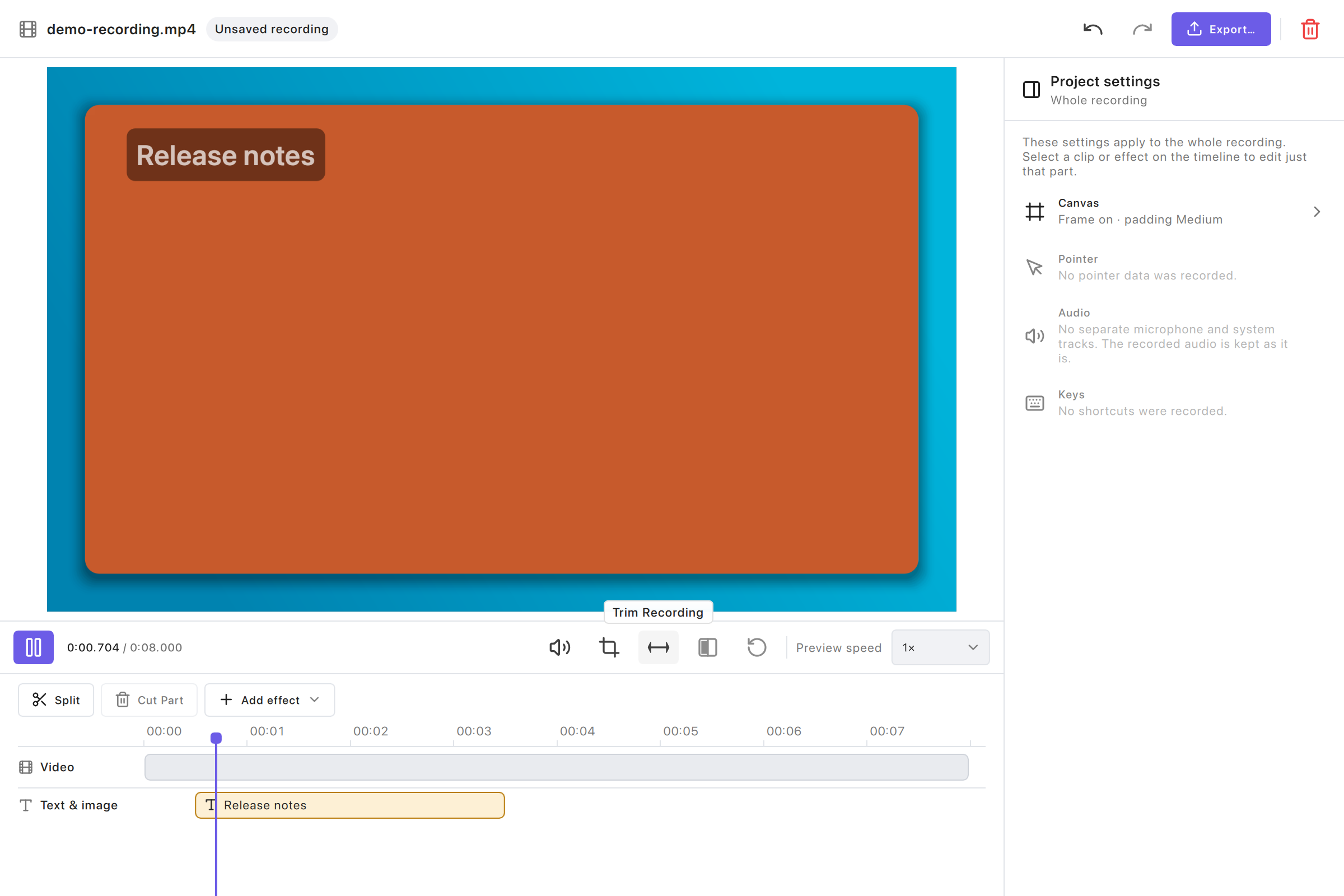
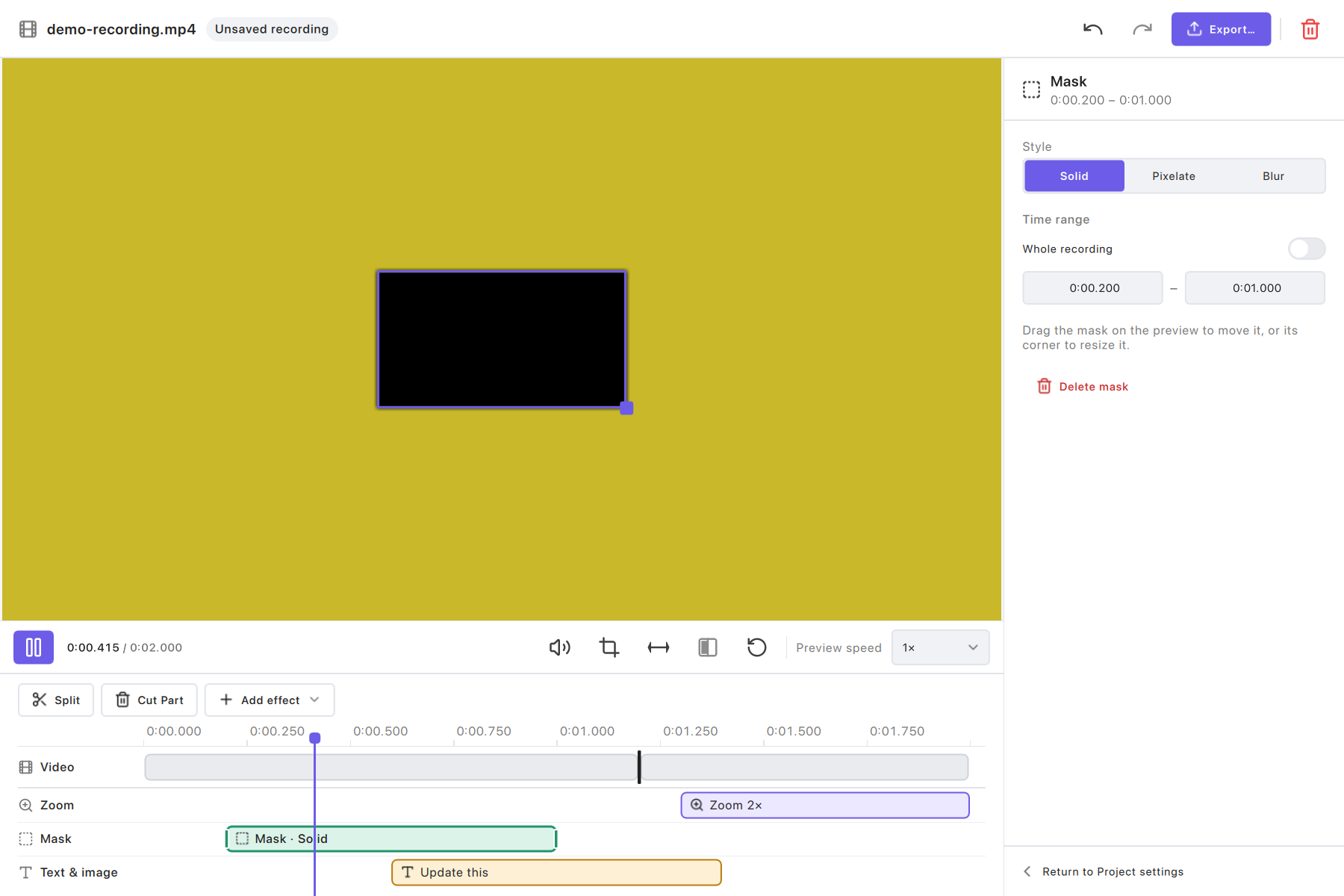
Use a top bar for project identity and the primary Export action, a large central preview, a stable right inspector, playback controls below the preview, and a bottom timeline. Increase preview space before adding decorative whitespace.
- Without an object selection, expose project-wide canvas, pointer, audio, and key-hint settings.
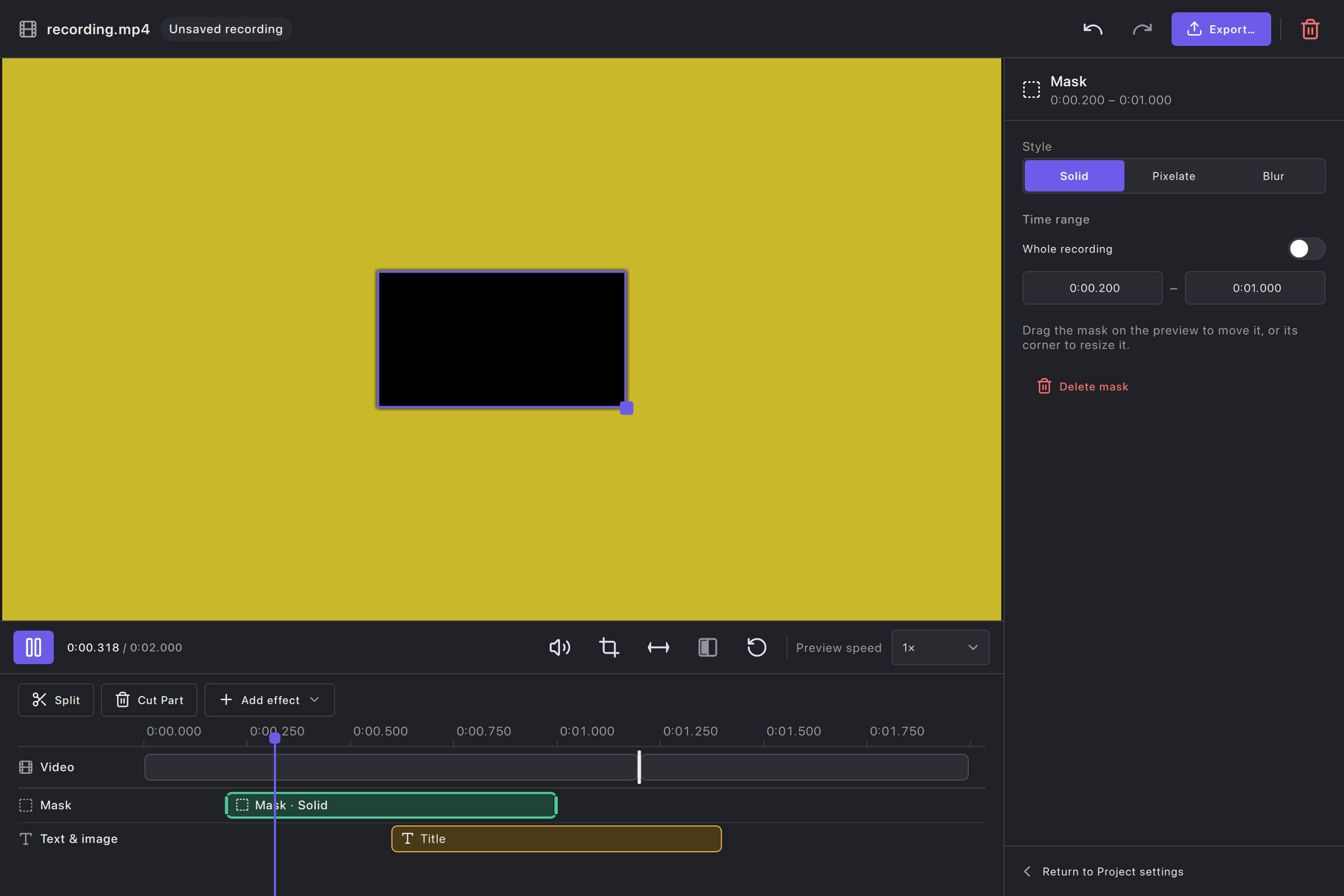
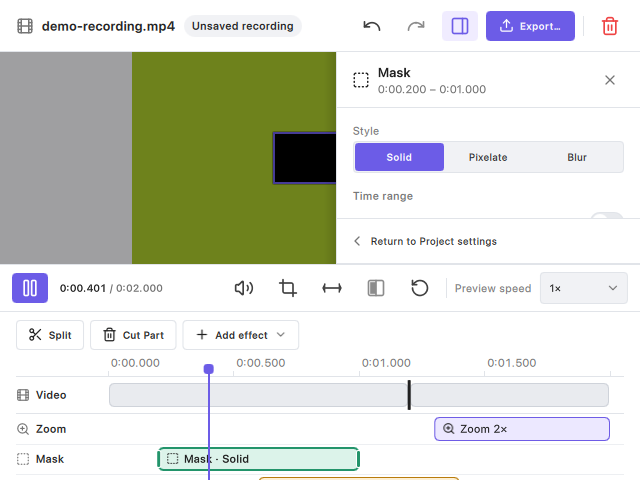
- Selecting a clip or effect shows its type, time range, and relevant properties in the inspector. Provide an explicit route back to project settings.
- Keep export format, dimensions, frame rate, quality, codec, and estimated size in the export panel.
- Separate preview playback speed from exported clip speed in naming and placement.
- Keep split, delete, and effect creation near the timeline. Distinguish video and effect lanes without relying on color alone.
- At narrow widths, use a collapsible inspector rather than wrapping a long mixed toolbar into the preview area. Determine breakpoints through real-window testing.
Implementation ownership:
| Issue | Responsibility |
|---|---|
| #215 | Window structure, responsive behavior, and component boundaries |
| #216 | Export panel and protected export entry points |
| #217 | Project-wide settings and appropriate controls |
| #218 | Selection lifecycle and contextual inspector |
| #219 | Timeline lanes and direct segment manipulation |
| #220 | Integrated visual, keyboard, and platform verification |
Controls and feedback
| Intent | Preferred control or behavior |
|---|---|
| Enable a setting | Labelled switch with an unambiguous state |
| Choose among a few values | Segmented selector with visible alternatives |
| Choose among many values | Labelled dropdown |
| Adjust a numeric value | Numeric input and, where appropriate, a slider using the supported range and steps |
| Choose a visual style | Preview swatches or thumbnails with accessible names |
| Complete an operation | Clear action label and feedback identifying the result |
Avoid cycling through hidden choices by repeatedly clicking a button. Do not imply continuous precision where the backend supports only discrete presets. Explain unavailable capabilities at the point of use, distinguishing missing source data from platform or format limitations.
Copy, Save, Export, Apply, and Close must describe distinct outcomes. Successful file operations should make the destination discoverable. Errors should retain work and offer a practical next step. Destructive actions should state what is removed; use undo where it is actually supported, and confirmation where needed.
Interaction quality and verification
Every component must implement appropriate hover, pressed, selected, keyboard-focus, disabled, busy, and error states. Focus must be visible, move predictably, and return sensibly after a menu or dialog closes. Text editing must not trigger playback or drawing shortcuts.
Before completing a UI change:
- Verify ordinary and minimum supported window sizes, long translated text, light/dark appearance, and high-DPI layouts.
- Exercise relevant multi-screen placement and screen-edge behavior for floating surfaces.
- Verify keyboard-only paths, accessible names, and state cues beyond color.
- Preserve pending-input validation, undo/redo, project reopening, cancellation, and close guards where applicable.
- Run the repository build/test scripts for substantive implementation changes, with focused regression coverage for changed behavior.
- Attach actual screenshots or interaction recordings. Identify the platform and any untested capabilities; a concept image is not validation evidence.
Keep the user documentation aligned with actual platform capabilities and the delivered workflow.
Rollout boundaries
The first implementation introduces neutral editor surface tokens, a stable editor shell, a scrollable inspector, a separate export popup, explicit choices, mutually exclusive effect selection, named effect lanes, and release-to-commit range dragging. Shared dialog buttons gain keyboard activation and visible focus. This editor change does not claim to redesign other surfaces. The capture/annotation toolbars follow Capture toolbar (#224), pins Pin window (#225), the Library Library (#226), and settings and Beautify Settings and Beautify (#227).
The remaining product work is tracked by #221: capture/annotation action grouping and overflow; pin mode visibility and reset controls; library browsing and project/output distinction; settings information architecture; and shared Beautify presets. Follow-up implementation is tracked in #224 (capture/annotation), #225 (pin windows), #226 (library), and #227 (settings/Beautify). Search, favorites, renaming, and batch actions remain candidates.
Editor interaction contract
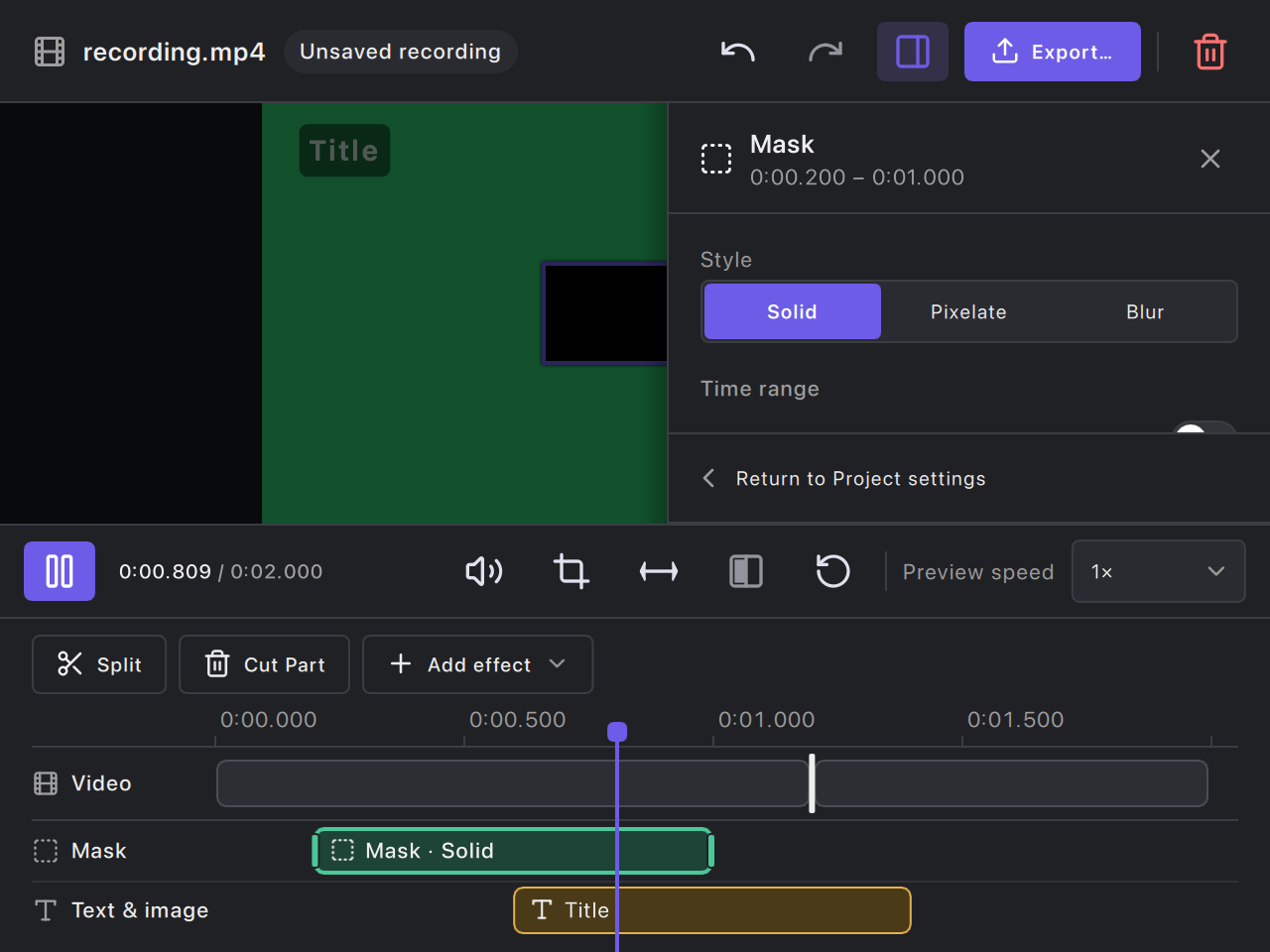
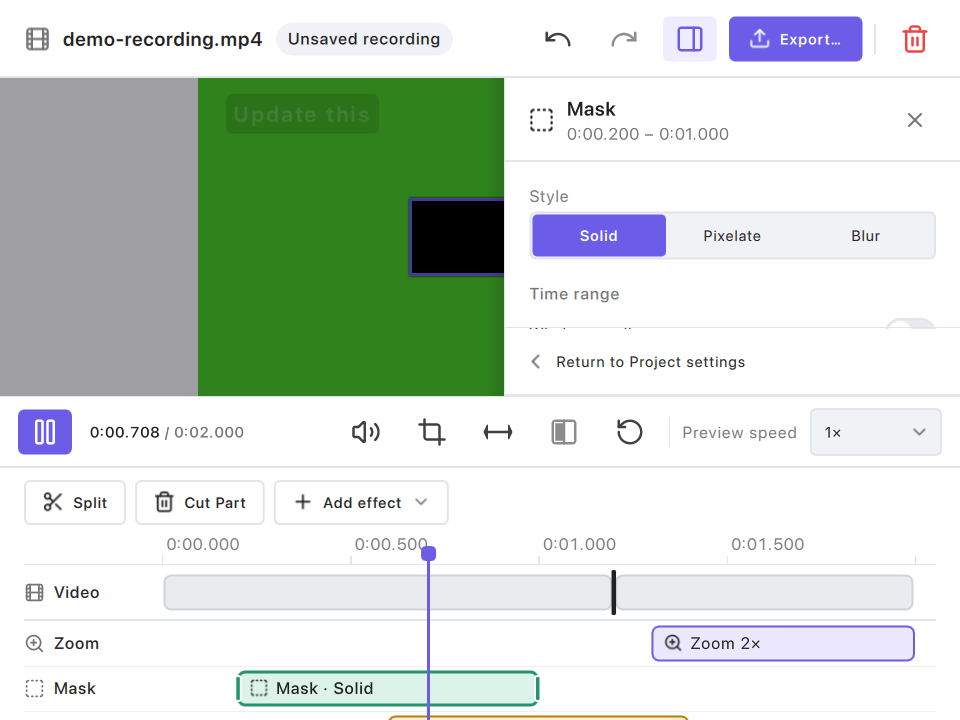
- The same player survives category changes and opening export. At widths below 980 logical pixels, the inspector is a sheet over the preview only, opened from the top bar and closed with ✕ or a click outside; playback controls and the timeline remain uncovered.
- The timeline keeps a fixed height (a ruler, the video lane and a fixed number of visible effect lanes); adding effects never resizes the preview, and further lanes scroll. A selected effect is scrolled into view.
- Two to four alternatives use a full-width segmented selector; longer lists use a drop-down with a single chevron (#230).
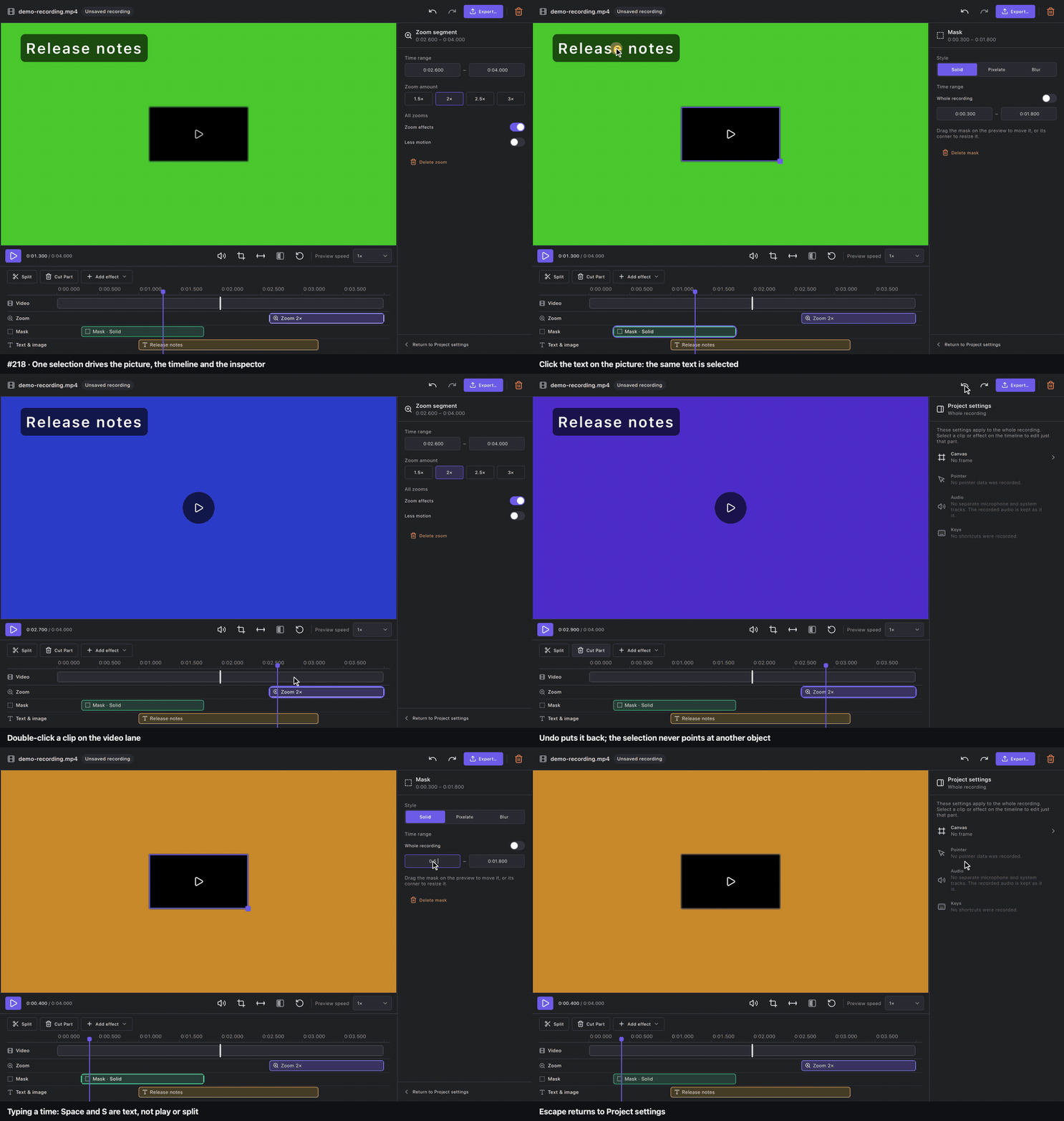
- Effect selection is exclusive, and the picture, the timeline and the inspector show the same object: clicking a text, image or mask on the picture selects it like its timeline block (#218). Switching commits valid time input; invalid input keeps its object selected and exposes correction or Escape-to-revert. Escape clears the selection or closes the open category and returns to Project settings; in a narrow window it also hides the inspector before asking to close the recording. Rebuilding segments (Auto Zoom) never leaves an index on a different object.
- A category that the format or the recording cannot use stays listed with its real reason (for example “GIF and WebP have no sound” for Audio). The reason shows only for that cause; a whole editor disabled during an export keeps the summaries.
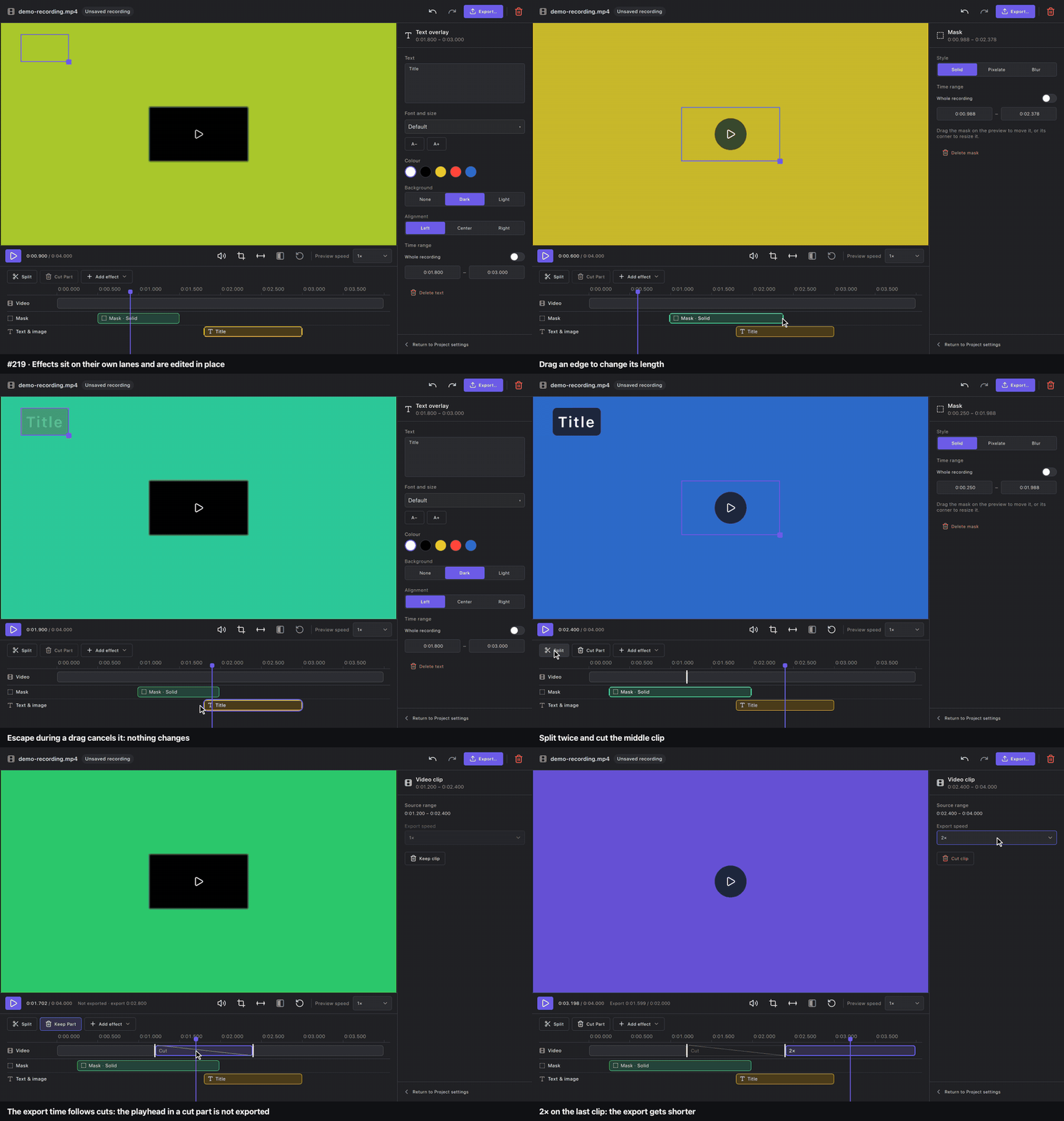
- Effects use source milliseconds, not concatenated output time. Clip cuts and speeds retain the existing backend mapping. Drag drafts mutate the backend only on release, as one undo step; Escape drops an effect, split or trim-handle draft, and a lost grab restores the trim. Split markers are keyboard reachable (arrows move, Delete joins). Once the edit trims, cuts or changes speed, the playback bar also shows the exported time and length, or “Not exported” in a cut part; an effect lying only in cut parts is crossed out. Exact range fields remain available for short segments. Clicking or dragging the video track only seeks and preserves the active effect/crop edit; double-clicking explicitly selects a clip. The video track stays fixed while effect rows scroll.
- Export entry points open the same panel. The final Export action validates pending ranges, custom width, trim, and crop drafts before calling the existing guarded backend. Export cancellation, errors, project retention, and fast-path encoding remain backend responsibilities.
Acceptance matrix
Record actual environment, results, and evidence for each implementation; a blank or pending cell is not a pass.
| Check | macOS | Windows | Ubuntu 22.04 X11 beta |
|---|---|---|---|
| Build and repository tests | scripts/run-tests.sh, all suites (#214 follow-up PR) |
Local Windows build passed; focused UI regression 7/7; earlier full baseline and reruns documented in #210 | scripts/run-tests.sh on a 2× desktop: 231 of 233; see Ubuntu pass |
| Wide/narrow, light/dark, selection/export | QML screenshot fixtures (below) | 1200x800/640x480 fixtures passed; representative images inspected (see Windows follow-up) | The same fixtures rendered on Ubuntu at 2×, light and dark |
| Pending input, drag/undo, close/cancel | Automated preview suites; operation videos; exporting, close-while-exporting and cancelled screenshots (below) | Preview regression and operation scripts passed; QTest-driven | Preview suites and operation videos pass locally; closing during a real export asks Keep/Cancel, Keep finishes it |
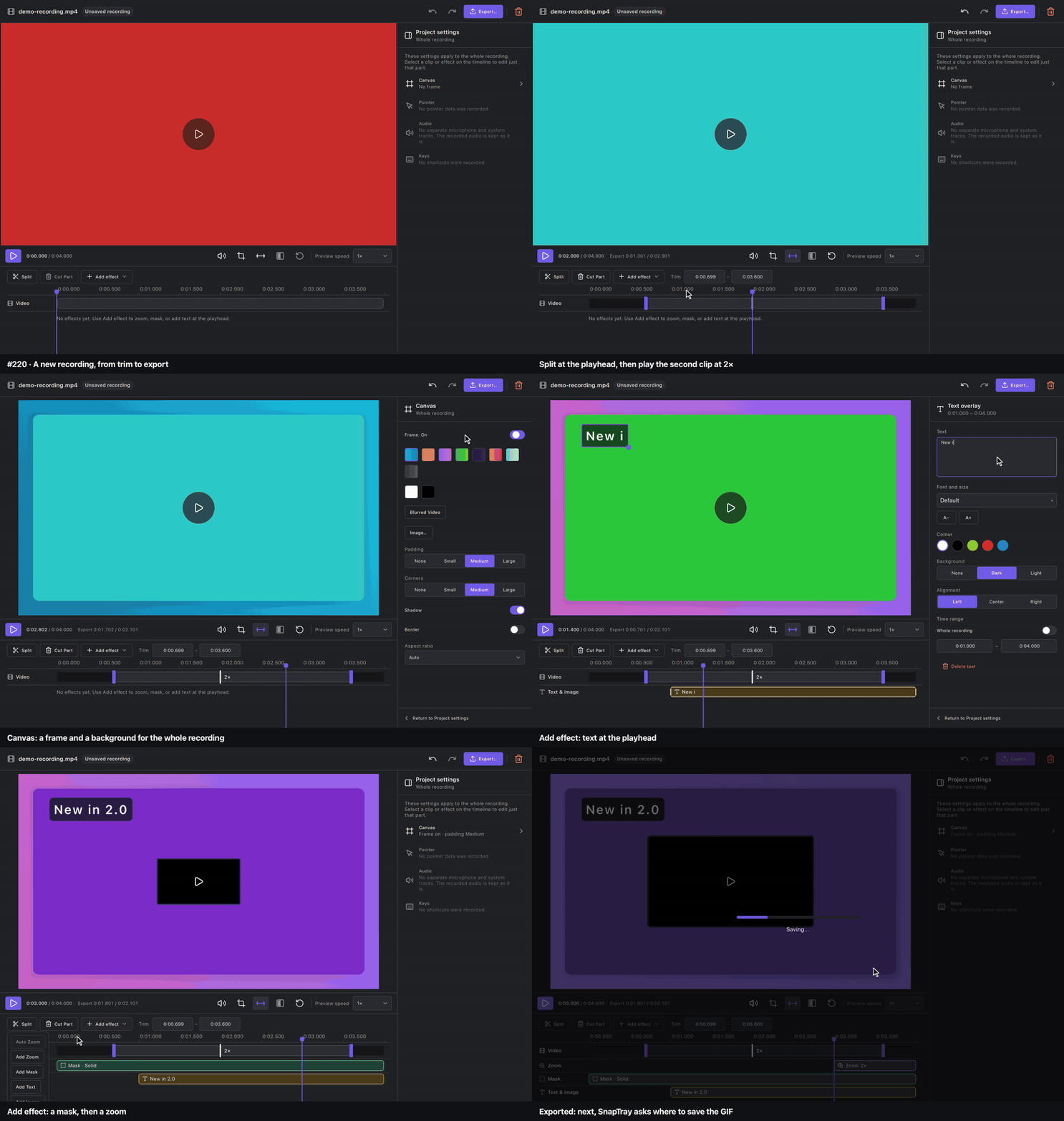
| New recording end-to-end (trim → split/speed → canvas → text/mask/zoom → export) | Scripted real-input session, editor-220-flow |
Fresh native capture loaded into scripted editor; trim, 2x, canvas, text/mask/zoom, real GIF and H.264 outputs passed; tray handoff not exercised | Real-input session (XTest): split, 2×, mask, text, zoom, undo/redo, MP4 export; trim and canvas not exercised; see Ubuntu pass |
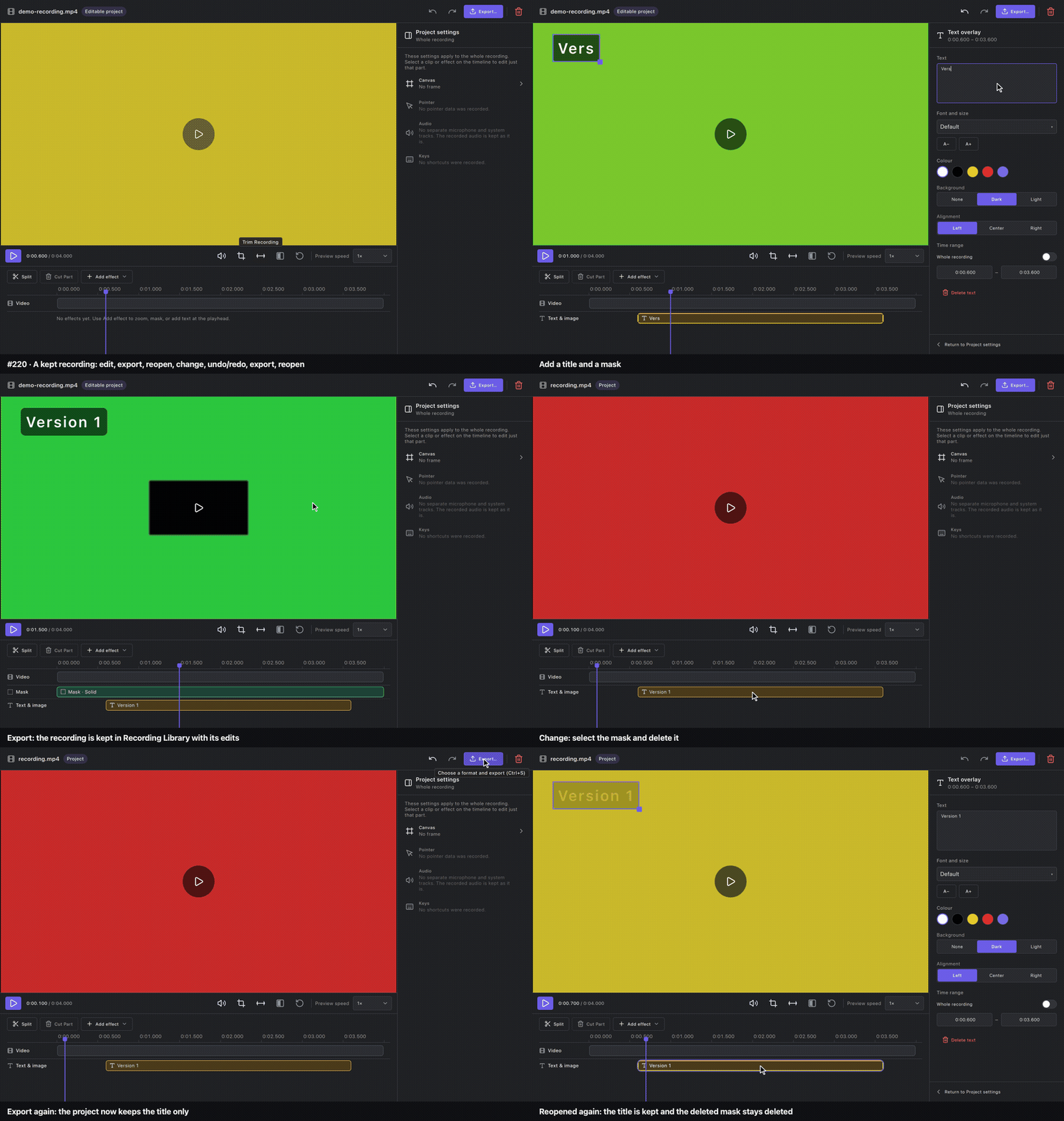
| Reopened project (reopen → change → undo/redo → save → reopen) | Scripted real-input session, editor-220-reopen; tst_RecordingPreviewExport::projectsKeepTheRecordingAndItsEdits, tst_RecordingEditor::redoAndReopenKeepSelectionHonest |
QTest-driven native-recording project reopen/change/undo/redo/export/reopen passed; Library click navigation pending | operationVideoReopen passes locally; no real reopen session |
| Long translations | de, fi, ru, el at 1200 × 800 and 640 × 480 (below) | de/fi/ru/el fixtures passed and representative wide/narrow/export images inspected; exhaustive control walkthrough pending | de, fi, ru, el at 1200 × 800 and 640 × 480 rendered on Ubuntu at 2×; every control reachable |
| Multiple DPI scales | 1×, 1.5× and 2× renderings (QT_SCALE_FACTOR on a Retina display, below); no physical 1× display |
1x/1.5x/2x renderings passed; physical 150%/250% window move exposed a Qt/Windows size jump (see follow-up) | Physical 2× (Xft.dpi 192); 1× and 1.5× rendered with QT_ENABLE_HIGHDPI_SCALING=0 and QT_SCALE_FACTOR=0.75. GNOME on X11 offers no 150 %; one display, so no mixed DPI |
| Screen reader names | AX audit passed after #238 fixes (audit); no VoiceOver speech session; inspectorControlsAreNamed, choicesReadTheirStateToScreenReaders |
Pending (Narrator) | AT-SPI tree of the live editor (what Orca reads): buttons, combo boxes, timeline parts and inspector rows named, shortcuts in descriptions; the export panel’s dialog has no name (#253). No spoken Orca session |
| Floating tools at screen edges/multiple displays | Outside this editor change | Pending follow-up | Pending follow-up (one display) |
#220 was closed on the macOS evidence above. The pending Windows, Ubuntu 22.04 X11 beta, physical-DPI and screen reader passes are tracked in #238; update this matrix with their results.
Windows follow-up (2026-11-06–07, #238)
Windows 10 Pro 22H2 (19045), Qt 6.12.0/MSVC Debug, GTX 1650; physical
150% ROG PG279Q and 250% UHD HDR displays. Results use QTest-driven real Qt
windows and native media; they do not constitute a Narrator speech session.
Evidence is retained locally in build/issue-238-windows-20261106/.
- Seventeen corrected evidence groups passed: editor states, source-recording
flow/reopen, toolbar/pin renderings at 1x/1.5x/2x, de/fi/ru/el editor text,
and German toolbar/pin text. Representative images were visually inspected.
On the primary 1.5x display,
QT_SCALE_FACTOR=2/3and4/3simulate 1x and 2x; these are not physical Windows scaling changes. - A new 6.054-second native DXGI/MF capture was loaded into the editor test. UI operations trimmed it, split it, selected 2x, and added canvas, text, mask and zoom effects. Real GIF and H.264 exports were retained; MP4 was 2790x1670 and 2.822 seconds, matching the edit state. File-dialog completion is replaced by controlled file retention in this fixture.
- Project export/reopen, mask deletion, Undo/Redo, another export and another reopen passed. The fixture calls the same project-opening API as Library; it does not click through Library navigation.
- Native pin checks passed: actual QTest clicks, slider position stability, zoom presets 33/50/100/200%, opacity presets and 10–100% reset, shortcuts, Escape, and closing the panel before a non-Escape key changes geometry. With a separate process foreground, Win32 visibility and Z-order confirmed that the bar/panel remained visible above the pin.
- The software-grab DPR metadata bug in #260 also reproduced on Windows. The evidence tools now use source-window dimensions/DPR for composition, including the editor video’s drawn pointer. Corrected 1x/1.5x/2x captures passed. These are evidence-tool changes, not a pin placement product fix.
- Physical mixed-DPI movement remains not passed. A 640x480 window moves from 150% to 250% as 636x467, then returns as 1073x821. A plain Qt window without the editor reproduces it, both with and without QtTest’s 96-DPI font attribute. This points to Qt/Windows geometry handling; the editor’s large size jump is not treated as a passed layout check.
- Focused regression: seven related CTest suites passed. Narrator speech, exhaustive physical Tab traversal, three-host annotation walkthroughs, and all pin Live/click-through scenarios remain pending.
Reproduce the opt-in hardware checks with Qml_RecordingEditor
mixedDpiWindowMove and SNAPTRAY_EDITOR_MIXED_DPI_DIR=<evidence-dir> (two
screens with distinct DPRs required). Use SNAPTRAY_EDITOR_SCREEN=primary
for deterministic evidence placement. SNAPTRAY_EDITOR_RECORDING=<mp4> with
SNAPTRAY_EDITOR_VIDEO_DIR supplies real media to operation fixtures.
PinWindow_Evidence nativeControlsAndZOrder uses SNAPTRAY_PIN_NATIVE_DIR
and SNAPTRAY_FOCUS_HELPER for the controlled second-process focus check.
macOS accessibility audit
The macOS screen reader check for #238 read the accessibility (AX) tree of the running debug app — the names, roles and states VoiceOver announces — with a small AXUIElement dump tool, for Settings (every page), the Library, the recording editor (inspector, timeline, export panel, Canvas), the capture toolbar and More menu, and pin windows (hover bar, zoom panel, click-through pill). VoiceOver itself was not run, so speech order and verbosity are unverified.
Fixed (each with a regression test that fails before the fix):
- Capture toolbar buttons and More rows had no accessible information at all. Buttons are named by their tooltip; the active drawing tool reads as selected; More rows are named, pressable menu items (
tst_ToolbarOverflow::buttonsAndMoreRowsAreNamedForScreenReaders). - The Settings sidebar was a list of menu items without a selected state, and VoiceOver’s press did nothing. It is a tab list now (
sidebarPagesArePageTabsForScreenReaders). - Drop-downs (Settings, Library sort and smart folders, editor Preview speed and Aspect ratio) read only their label; they now read the label and the current choice.
- Repeated buttons could not be told apart: two “Open Settings” (now with the permission and its status), two “Browse…” (now with the folder and path), and Edit/Clear/Reset on every hotkey row (now with the action; Edit also reads the shortcut and its status). The filename template field is named (
settingsControlsHaveDistinctNames). - Exclusive editor choices built from buttons (codec, Blurred Video/Image background, zoom scale, crop aspect) are radio buttons with a selected state (
choicesReadTheirStateToScreenReaders). - Pin windows were unnamed dialogs; they are named “Pinned image” with the image size (for example “Pinned image, 800 × 600 px”), so several pins can be told apart (#253).
The gaps that audit left were fixed in #248, again checked in the AX tree of the running app:
- The style strip below the capture toolbar: sizes and colors are named choices (the custom color button reads the current color); the stroke width is a slider with increase and decrease, and Mosaic’s widths are choices; the arrow and line style buttons read the current style; shapes are choices and Filled is a checkbox; Bold, Italic and Underline are checkboxes; font size and font read their value; Auto Blur is named by its hint (
Qml_ToolOptionsAccessibility). The arrow and line style names are now translated, in the menus too, where they were English-only. - A toolbar button drawn as disabled (Undo with nothing to undo) is reported as unavailable; a hover layer keeps its tooltip (
tst_ToolbarOverflow::disabledButtonsReadAsUnavailableButKeepTooltips). - Library results read as one-of-many choices with a selected state, sections and smart folders as tabs, and Grid/List as a choice (
tst_LibraryWindow::itemsAndSectionsReadTheirSelection). - The macOS tray icon has an accessibility label: “SnapTray - Screenshot Utility”, followed by the tray’s recording status (state, elapsed time, mode, audio and warnings) from the start of a recording until it is finished (
Platform_MacTrayAccessibility). - While the modal export panel is open, the editor behind it is disabled, so screen readers cannot operate it there either; it is usable again when the panel closes (
tst_RecordingEditor::exportPanelKeepsTheEditorOutOfReach). - Sliders read their value with its unit, for example “Default opacity, 100%” (
tst_SettingsCombo::slidersReadTheirUnit,Qml_PinHoverBarQml).
Ubuntu 22.04 X11 pass (#238)
Ubuntu 22.04.5 on X11 under GNOME (mutter), Qt 6.12.0, debug build of 747e15df. One 3840 × 2160 display at Xft.dpi 192, so Qt runs at 2×. The app ran with its own XDG_CONFIG_HOME and XDG_DATA_HOME. Input came from XTest (real X pointer and key events), pictures from import -window root and ffmpeg -f x11grab. Accessible names were read from the AT-SPI tree with pyatspi, the same tree Orca reads; no spoken Orca session was run. The fixtures and operation videos of this page were regenerated on the same machine with the commands in each “Regenerating” block.
- Tests. 231 of 233 suites pass.
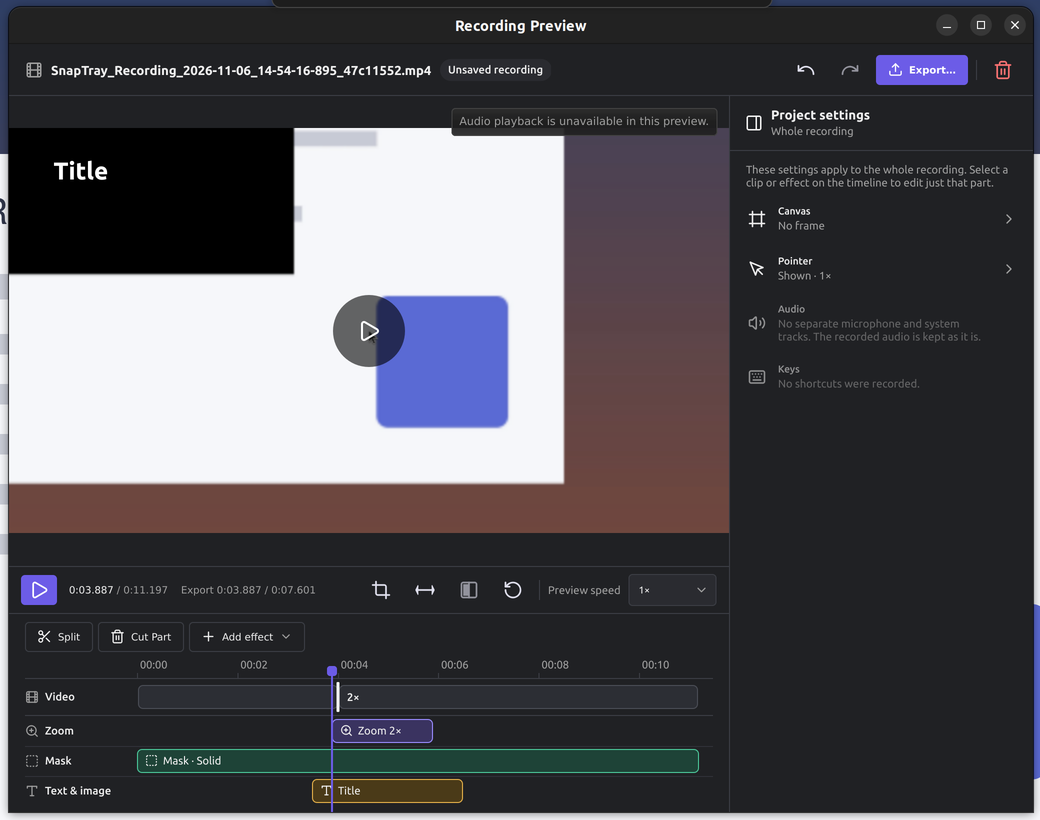
Qml_RecordingPreviewMasksfailed only at 2× withQT_QUICK_BACKEND=software: that scene graph tags its device-pixel grab with ratio 1, so the test measured the editor’s title instead of the picture. The test now takes the ratio from the grab’s size.Qml_DialogModality::growingDialogStaysOnScreenfails under mutter at any scale: when a centred dialog grows, the window manager moves it back on screen beforeQmlDialog::keepViewOnScreenruns, and the dialog takes that move for the user’s and stops centring. It stays on screen (#252). CI’s Xvfb has no window manager, so it does not see either case. - Recording and editor. Real-input session: the record hotkey started a full-screen recording (X11 shared memory,
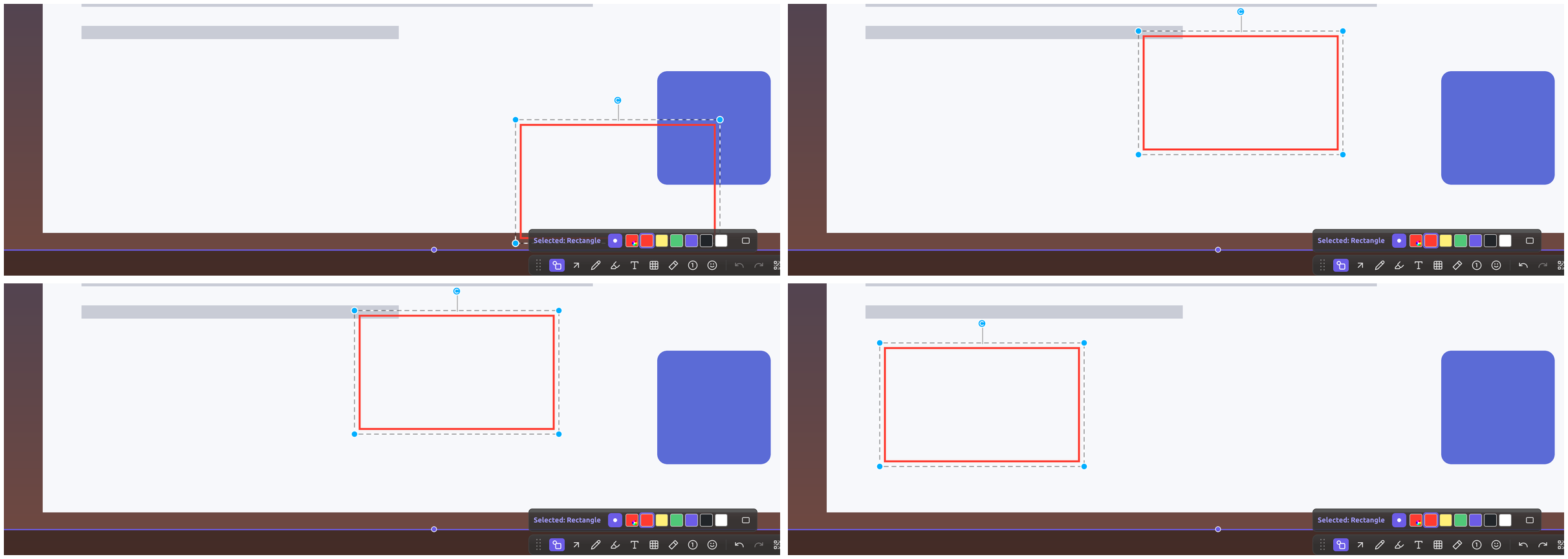
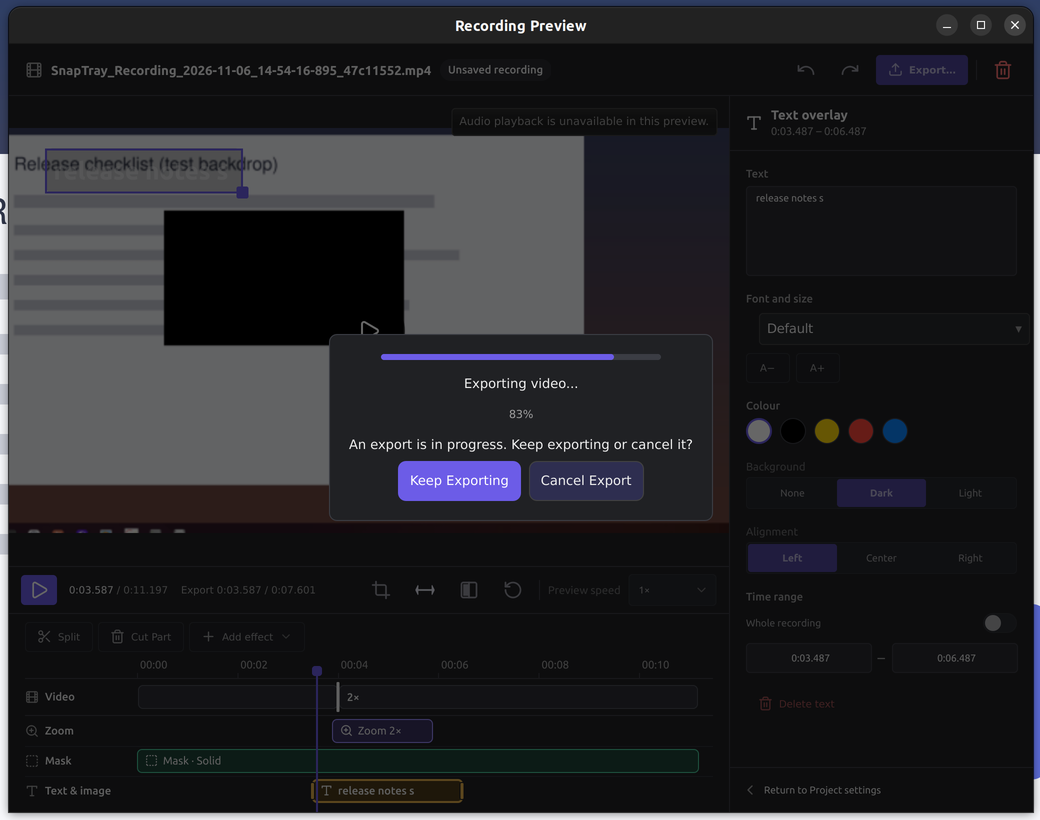
h264_vaapi, countdown). In the editor: seek on the timeline, S split at 0:04.005, the second part at 2× (the bar showed “Export 0:03.487 / 0:07.601”), mask, text and zoom from Add effect, four undos and four redos, typings, Space and Delete in the text field without splitting, playing or deleting, Space to play and pause. Closing the window during the MP4 export asked to keep or cancel, and keeping it wrote a 7.623 s file with every edit burned in. The Add effect menu opened downward and its last item was cut off by the window’s bottom edge (#253). - Capture toolbar and geometry undo. In region capture a drawn rectangle shows “Selected: Rectangle”; a drag, Ctrl+Z and Ctrl+Shift+Z each act as one step at the right place. Esc during a drag puts the rectangle back, releasing the button afterwards does not move it, and the next Ctrl+Z undoes the previous move, so the cancelled drag never reached the history. Screen Canvas shows the three groups and the finish band. Pin annotation and Screen Canvas drags were not repeated by hand; the shared
ShapeAnnotationEditorvideos and suites pass on this machine. - Pins. The hover bar and its panels never show. Pins bypass the window manager on Linux (
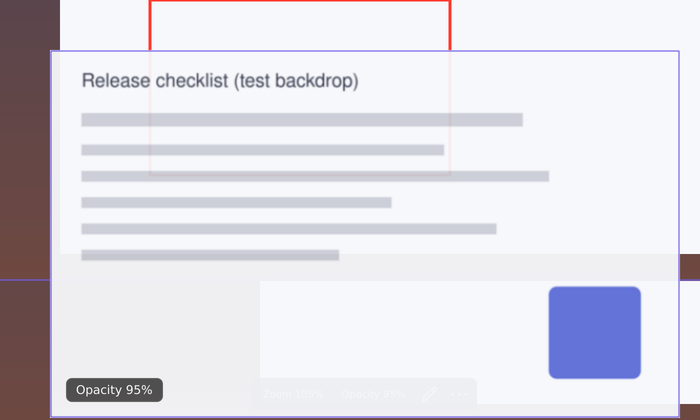
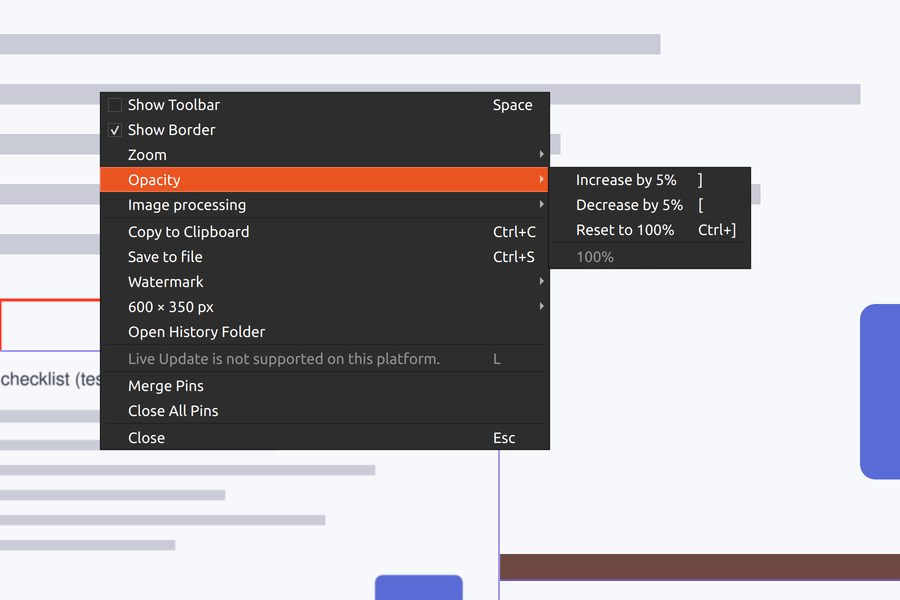
Qt::X11BypassWindowManagerHint), and override-redirect windows stack above every managed window, including the bar, which is mapped at the right place inside the pin’s bottom edge (#250). At 95 % opacity the bar shows faintly through the pin. Keys, badges and the grouped context menu work. - Screen readers. The editor and the pin bar are named. The capture, pin annotation and Screen Canvas toolbars expose no buttons at all:
ToolbarButton.qmlsets no accessible role or name, which affects every platform (#251). The export panel’s dialog and each pin window lack a name of their own (#253).

Not covered by this pass: a reopened kept project, a narrow or second display, mixed DPI, physical 1× and 1.5× desktops, spoken Orca output, the Library and Settings screen reader trees, and the “drag while changing colour” and crop undo items of #238 by hand.
Actual editor evidence
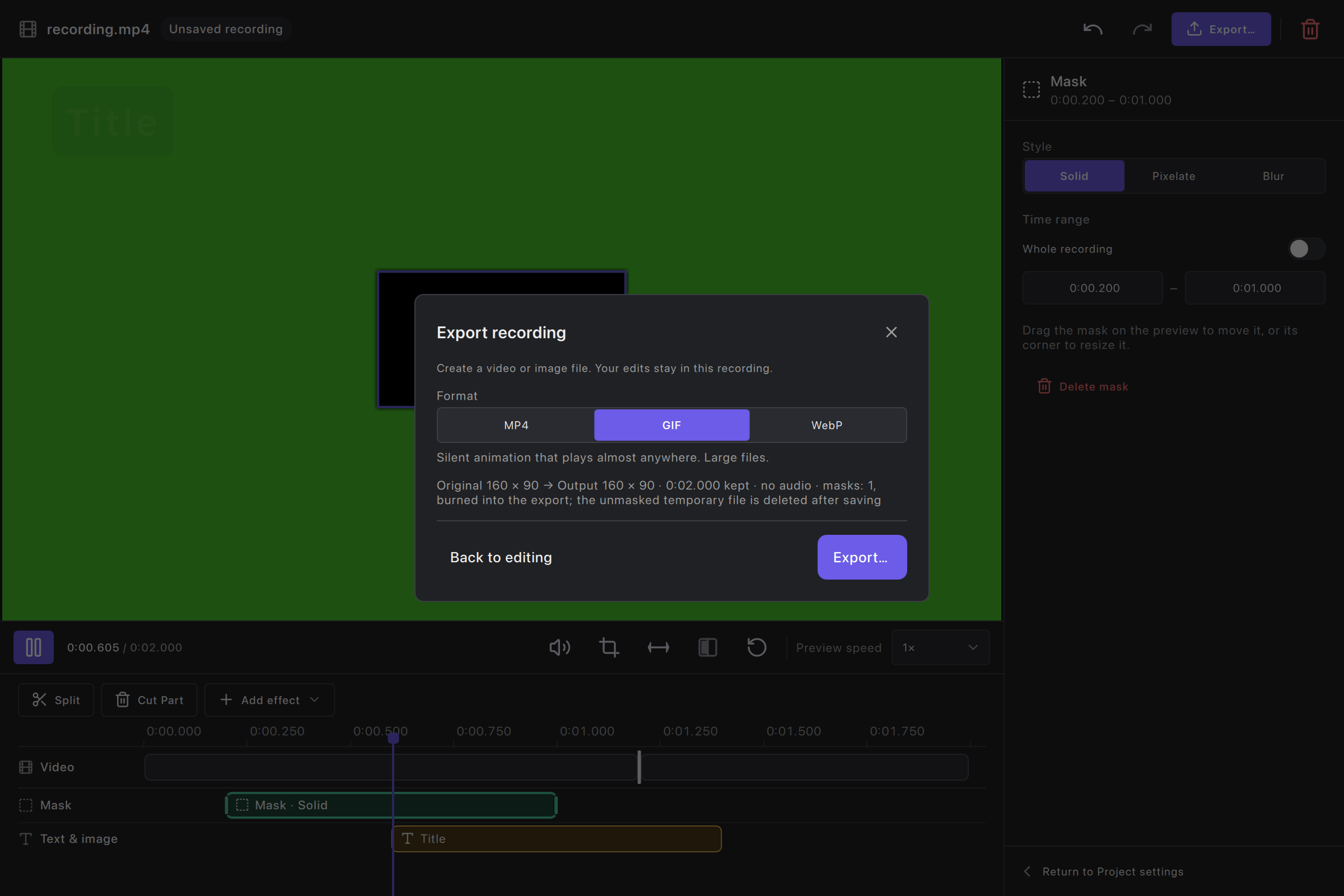
Captured from the QML integration fixture on macOS 27.0.1 / Qt 6.12.0 at 2× device pixel ratio. The solid-colour video is generated test media, not a design mockup. Wide windows are 1200 × 800 logical pixels; the narrow window is 640 × 480. These images verify this editor implementation only.
Operation videos
Recorded on macOS 27.0.1 / Qt 6.12.0 from a scripted session that sends real mouse and key events to the editor; the pointer and the caption are drawn into each frame. The solid-colour video is generated test media. MP4 versions sit next to each GIF.
-
Selection (#218): timeline, picture and inspector stay on one object; Delete, Undo, typing in a time field, Escape.
-
Timeline (#219): move, resize, one undo step per drag, Escape cancels a drag, exact times, cuts and speed with the exported time.
-
New recording end to end (#220): trim, split, 2× speed, canvas, text, mask, zoom, export.
-
Kept project (#220): export with “Keep editable projects” on, reopen from the Library’s Recordings, delete a mask, undo, redo, export again, reopen again.
Export and project states
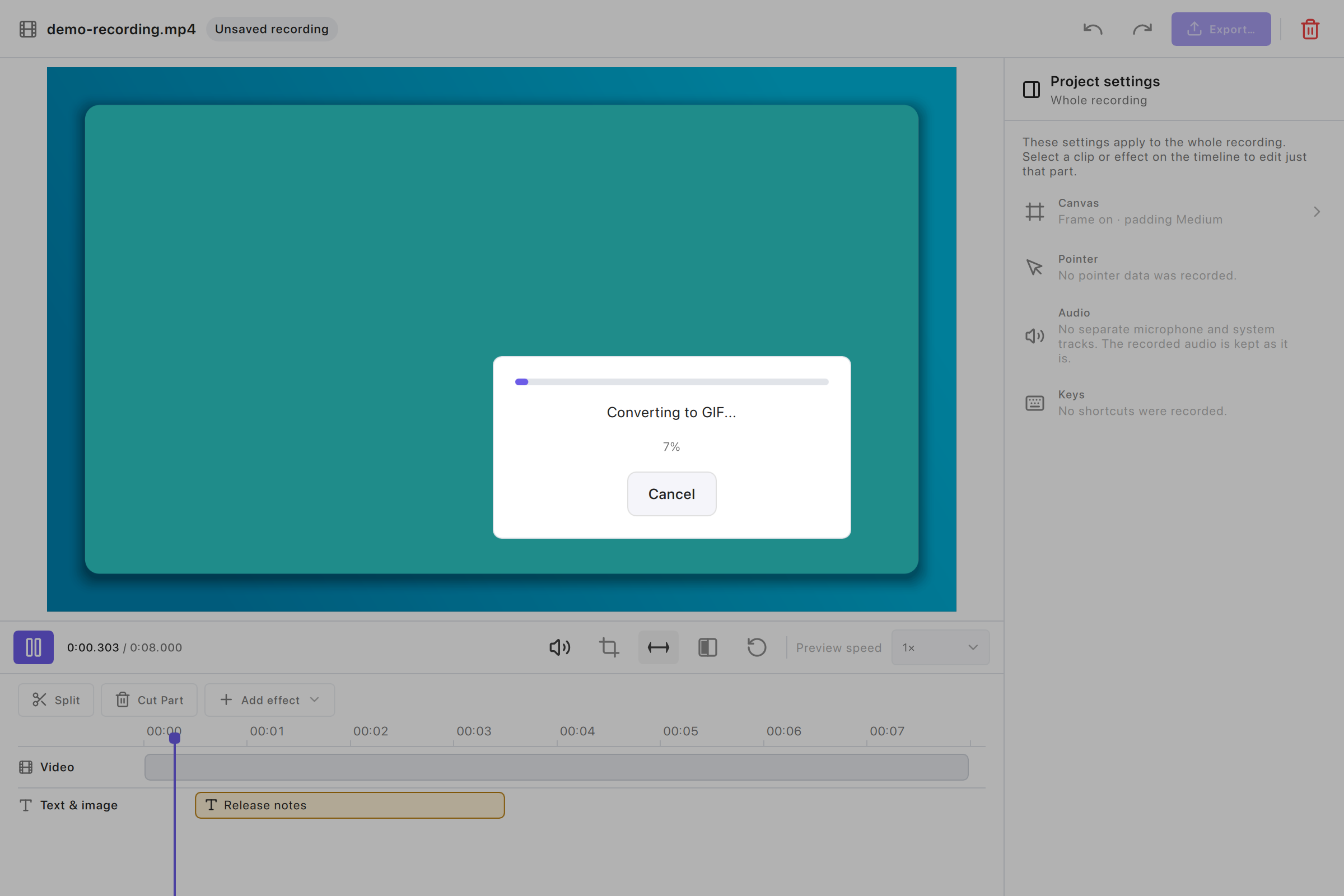
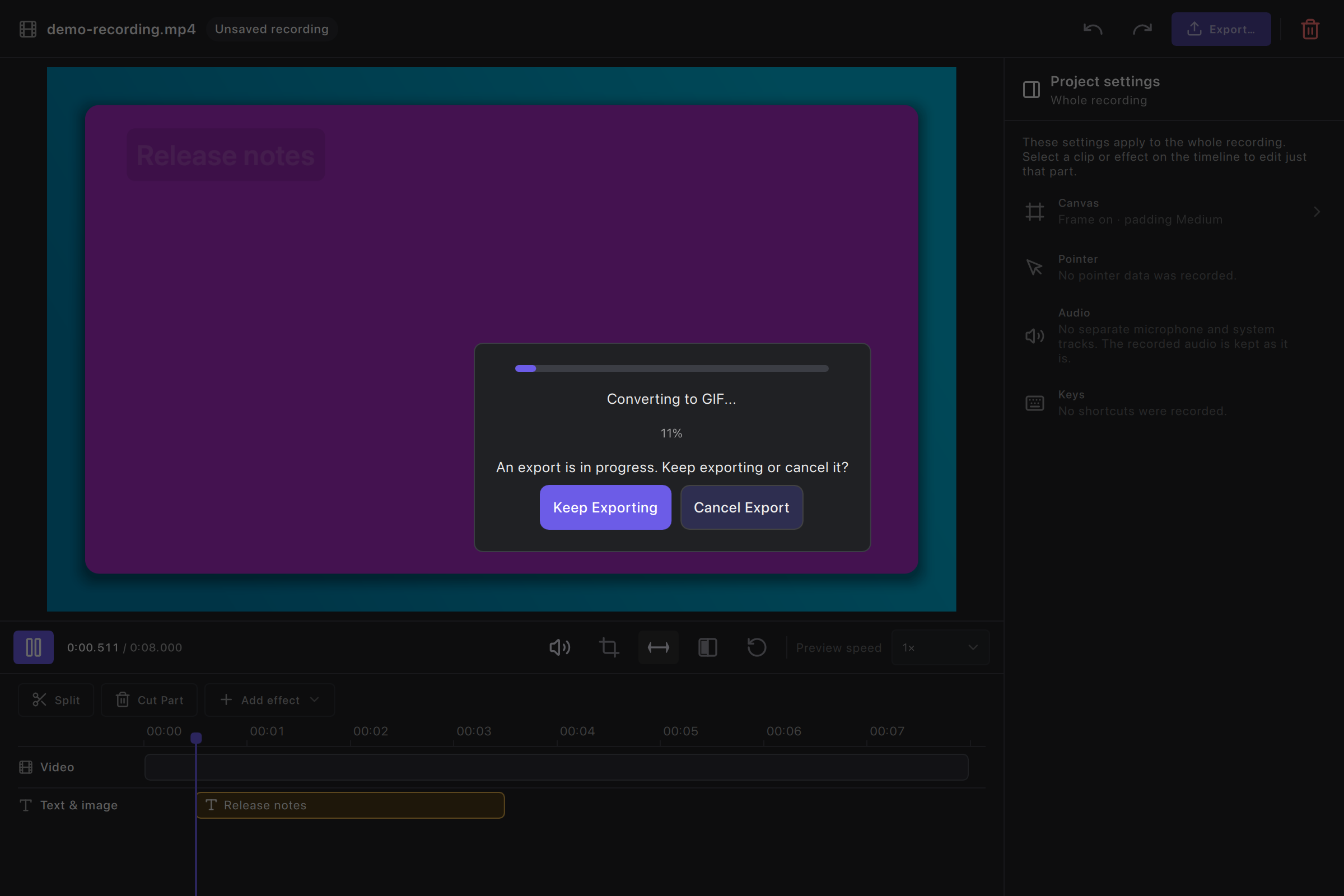
The export status sits on a solid panel, so it reads the same over any frame. Closing the window during an export asks to keep or cancel it; cancelling keeps every edit. A reopened project says “Project” in the top bar (a new recording that will be kept says “Editable project”).
Display scales
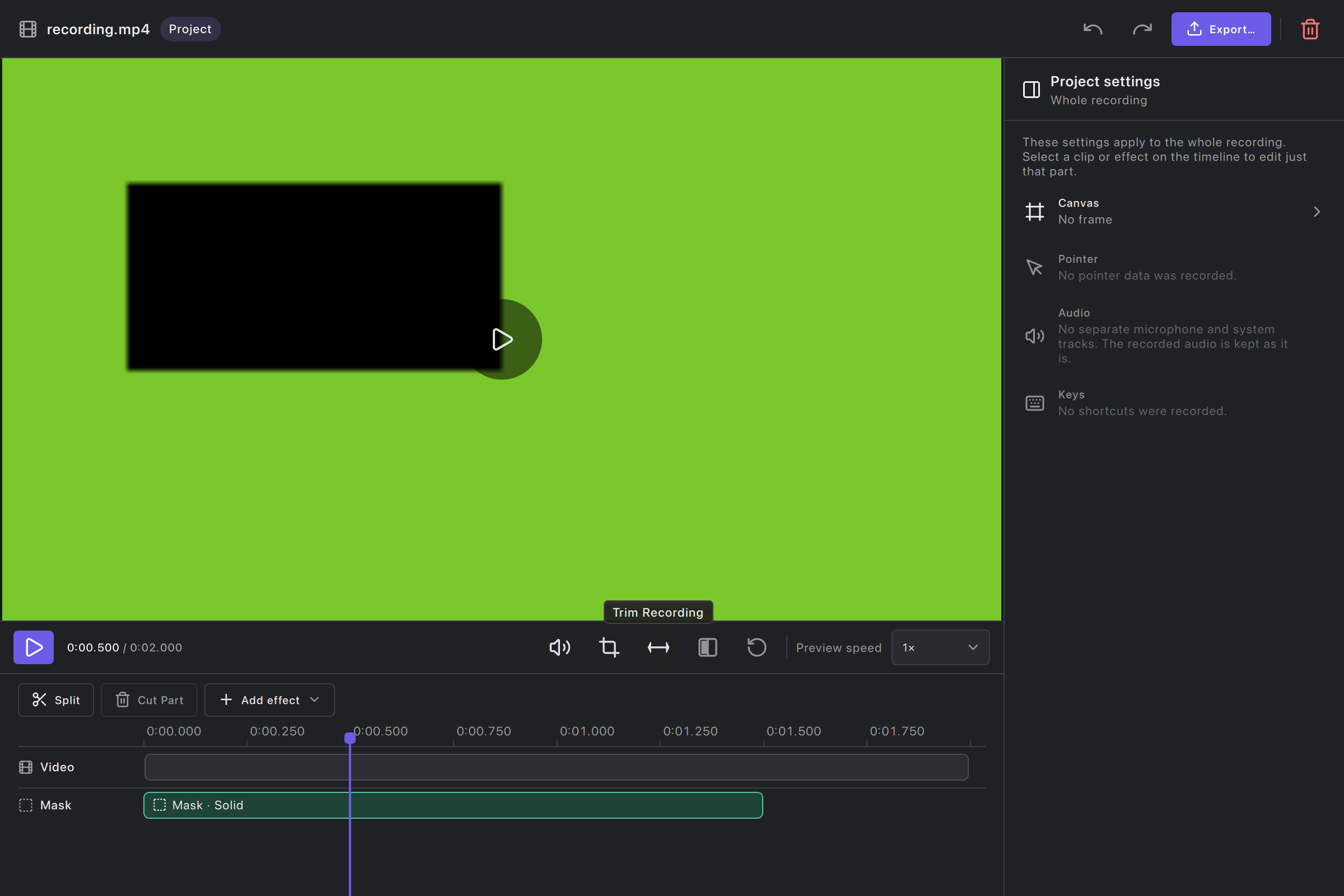
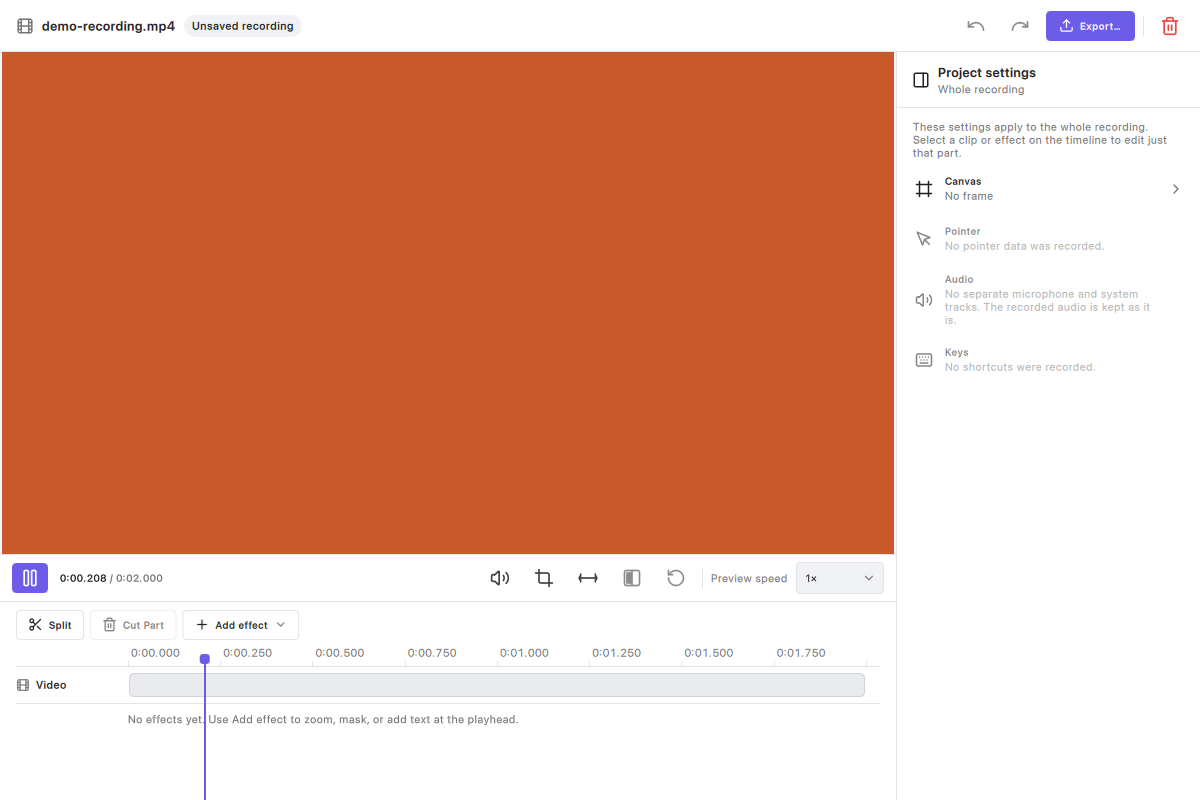
Rendered at 1× and 1.5× with QT_SCALE_FACTOR=0.5 and 0.75 on a 2× display, at the same logical sizes as above. Text, icons and hit targets keep their layout; the narrow inspector scrolls.
Long translations
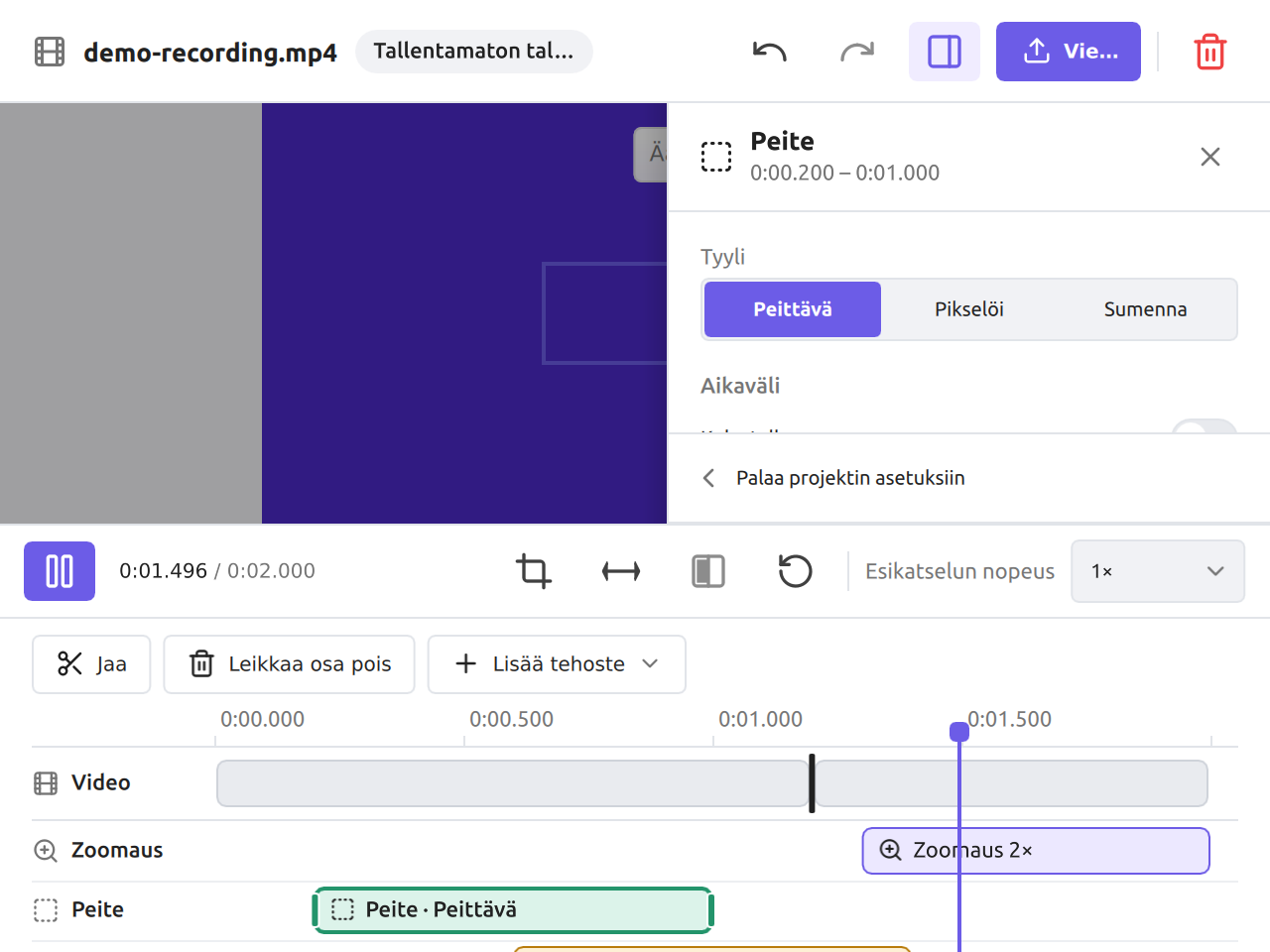
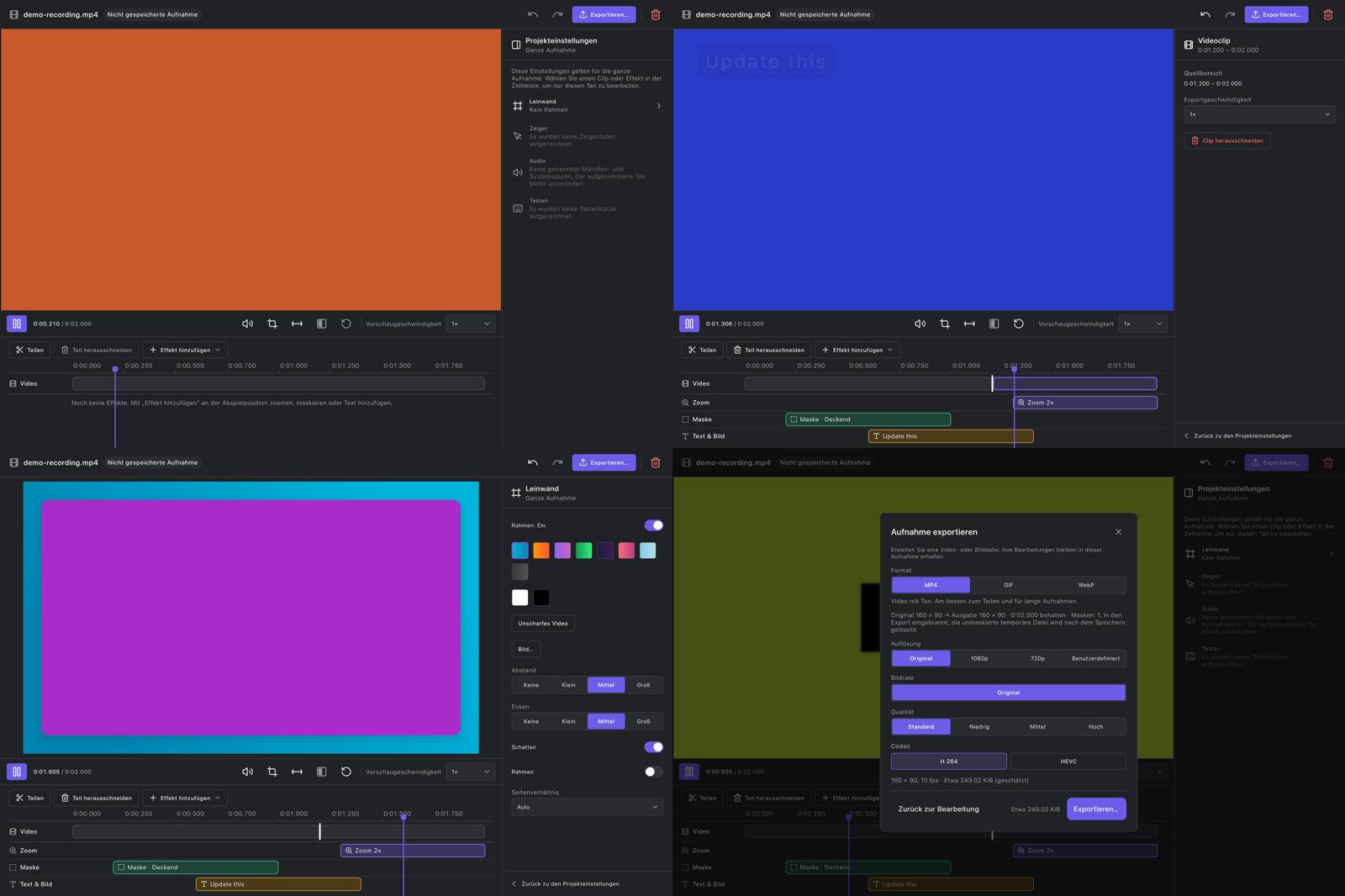
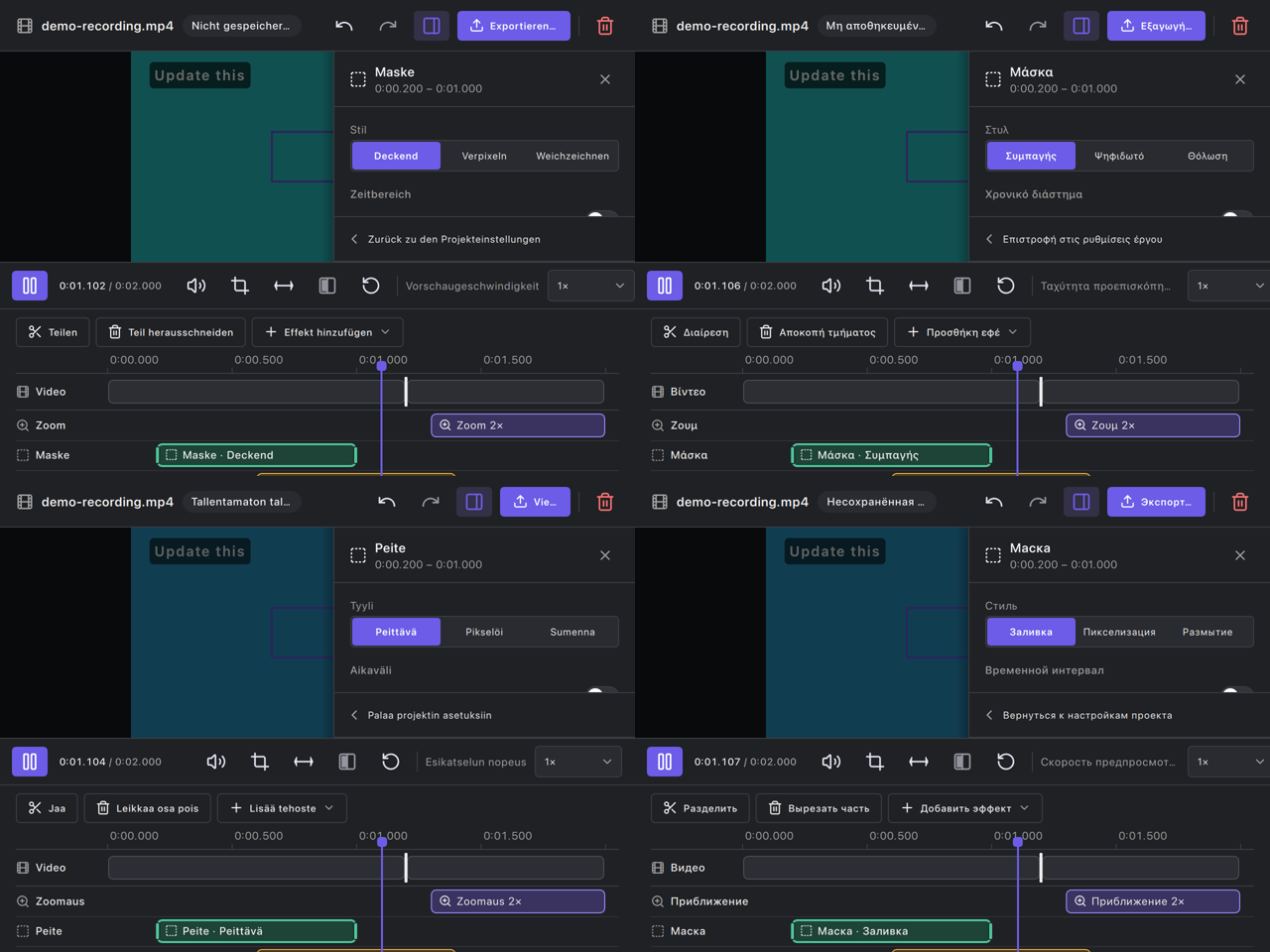
German, Finnish, Russian and Greek are the longest editor translations. Wide (German) and narrow (all four) windows keep every control reachable; the file name, status chip and an inline label elide by design and keep their full text in the tooltip and accessible name.
Regenerating the evidence
All of these come from tests/Qml/tst_RecordingEditor.cpp and run only when their variable is set:
cd build
# Screenshots of every editor state (light and dark); add the concept board with SNAPTRAY_EDITOR_CONCEPT=<png>.
SNAPTRAY_EDITOR_DESIGN_DIR=/tmp/editor ./bin/Qml_RecordingEditor designEvidence designEvidenceError
# The same in another language.
SNAPTRAY_EDITOR_DESIGN_DIR=/tmp/editor SNAPTRAY_EDITOR_TRANSLATION=$PWD/snaptray_de.qm ./bin/Qml_RecordingEditor designEvidence
# Export and project states (15-18).
SNAPTRAY_EDITOR_DESIGN_DIR=/tmp/editor ./bin/Qml_RecordingEditor designEvidenceStates
# Other display scales (19-22 come from 01, 02 and 10 of these runs).
QT_SCALE_FACTOR=0.5 SNAPTRAY_EDITOR_DESIGN_DIR=/tmp/editor-1x ./bin/Qml_RecordingEditor designEvidence:light
QT_SCALE_FACTOR=0.75 SNAPTRAY_EDITOR_DESIGN_DIR=/tmp/editor-1.5x ./bin/Qml_RecordingEditor designEvidence:light
# Operation video frames, then a video per scenario.
SNAPTRAY_EDITOR_VIDEO_DIR=/tmp/videos ./bin/Qml_RecordingEditor operationVideo operationVideoReopen
ffmpeg -framerate 10 -i /tmp/videos/218-selection/frame-%05d.png -c:v libx264 -pix_fmt yuv420p editor-218-selection.mp4
Capture toolbar
Applies to the Region Capture toolbar, the Pin Window annotation toolbar, and the Screen Canvas toolbar (#224). Design: docs/superpowers/specs/2026-11-05-capture-toolbar-design.md.
Contract
- Buttons sit in three groups, defined once in
include/tools/ToolbarTraits.h: draw (shape, arrow, pencil, marker, text, mosaic, eraser, step badge, emoji), assist (undo, redo, OCR, QR Code, multi-region, and pin’s Beautify/crop/measure), and finish (pin, save, copy). A group boundary adds a separator plus a 4 px gap; the finish group sits on a faint accent band. - When the toolbar does not fit the screen (capture: the selection’s viewport; pin: the pin’s screen; canvas: the activation screen), buttons collapse into More by priority: QR Code, OCR, multi-region, emoji, step badge, eraser, mosaic, then other drawing tools from the end of the row. Copy, save, pin, done, cancel, exit, undo, redo, and the active tool never collapse. Hit targets stay 28×24.
- More names each item, works with Up/Down/Enter/Esc, closes on a click outside or a re-layout, and returns focus to the More button.
- With a text, arrow, line, or shape annotation selected, the style strip edits that annotation, says
Selected: <type>, and each change is one undo step (dragging the width slider or clicking through colours coalesces until 500 ms idle). With nothing selected it saysNew objectand sets the defaults for the next annotation. Editing a selection never changes the saved defaults. A selected shape keeps its type; emoji, pencil, marker, mosaic, and step badges are not restyled. - Selection follows the annotation, not its position in the list: erasing other annotations keeps it.
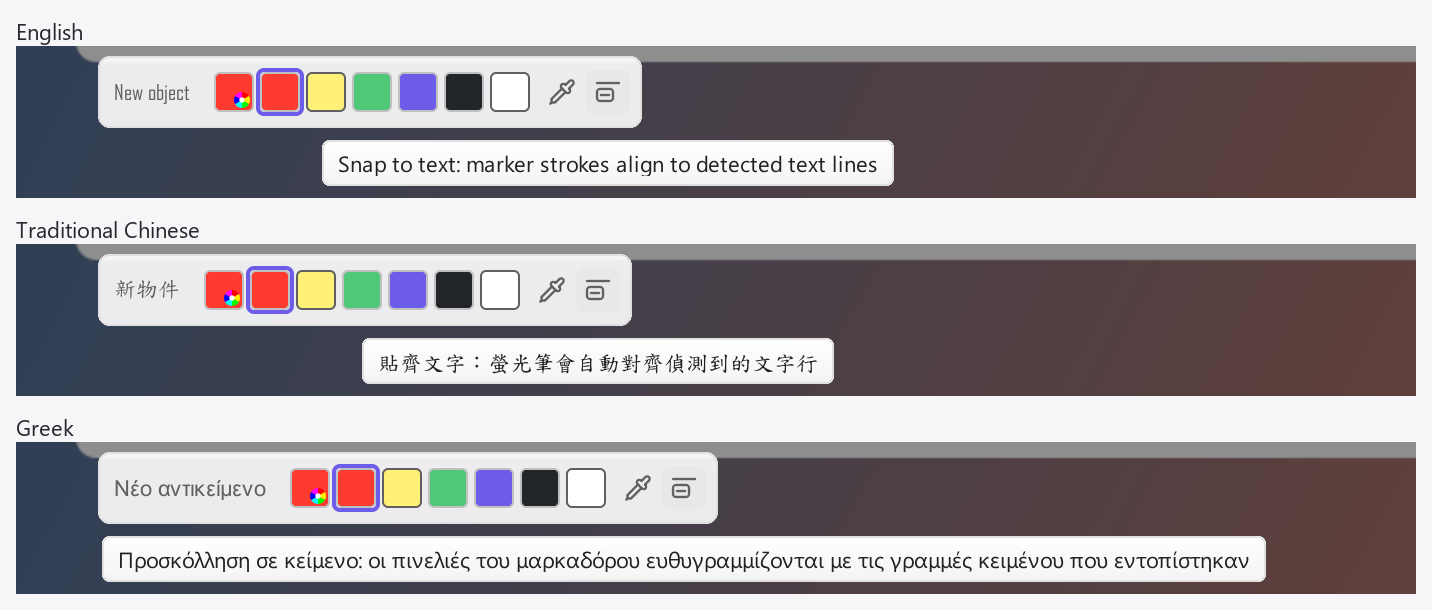
- Marker’s Snap to text (#304) is a 22×22 icon toggle styled like Shape’s Filled toggle, so its width does not depend on the locale.
- It sits 2 px after the eyedropper, the spacing of adjacent icon buttons such as Shape’s, so the two icon buttons read as one group. The icons are then as far apart as the last swatch is from the eyedropper icon. This replaces #305’s 12 px gap before the next section.
- Off: transparent with the toolbar icon color. Hover: the strip’s hover background. On: a solid accent block with the active icon color, also while hovered.
- Its explanation is in the sub-toolbar tooltip (
ToolOptionsStrip.controlTooltipRequested→QmlFloatingSubToolbar→ToolbarTooltipController, shared with Auto Blur and the eyedropper; dismissals name their control, so a late one never closes another control’s tooltip) and inAccessible.description. - Screen readers get a checkbox that toggles on both the toggle and press actions.
- The button shows only the preference, never OCR progress.
Acceptance
| Check | macOS | Windows | Ubuntu 22.04 X11 |
|---|---|---|---|
| Groups, finish band, normal width (light/dark) | Screenshots below | Pending manual pass | Real region capture and Screen Canvas on X11 at 2×; fixtures light and dark |
| Collapse into More on a narrow screen, menu by keyboard | Screenshots below + tst_ToolbarOverflow |
Pending manual pass | Fixtures at 1×, 1.5× and 2× + tst_ToolbarOverflow; no narrow physical screen |
| Selection placement at screen edges and on a narrow side monitor | tst_ToolbarOverflow::selectionPlacementStaysOnScreen |
Pending manual pass | tst_ToolbarOverflow passes; no side monitor |
| Restyle a selected annotation, undo/redo, defaults untouched | Video below + *_StyleSync::selectedArrowStyleIsUndoable (region, pin, canvas) |
Pending manual pass | *_StyleSync and the operation videos pass locally; real geometry undo and Esc during a drag in region capture, see Ubuntu pass |
| Long translation (German) | Screenshots below | Pending manual pass | Fixtures in German on Ubuntu; same known style-strip overflow on the narrow screen |
| High DPI | 2× (Retina) screenshots below | 150 % pending | Physical 2×; 1× and 1.5× renderings |
| Screen readers (toolbar, More menu, strip label) | Toolbar, More and the style strip: AX audit passed after #238 and #248 fixes (audit); no VoiceOver speech session | Pending Narrator pass | Fails on 747e15df (before #247): AT-SPI showed the strip label but no toolbar buttons; ToolbarButton.qml set no accessible role or name, on every platform (#251). #247 names the buttons; not re-checked on Ubuntu |
Known limit: on very narrow screens (about 400 px) the style strip itself does not collapse, so its last control can run past the edge (see the narrow screenshots). The toolbar above it always fits.
Evidence
Rendered on macOS 27.0.1 / Qt 6.12.0 at 2× from the real toolbar, More menu, and style strip QML over a sample screenshot; style edits go through AnnotationStyleEditor and AnnotationLayer.
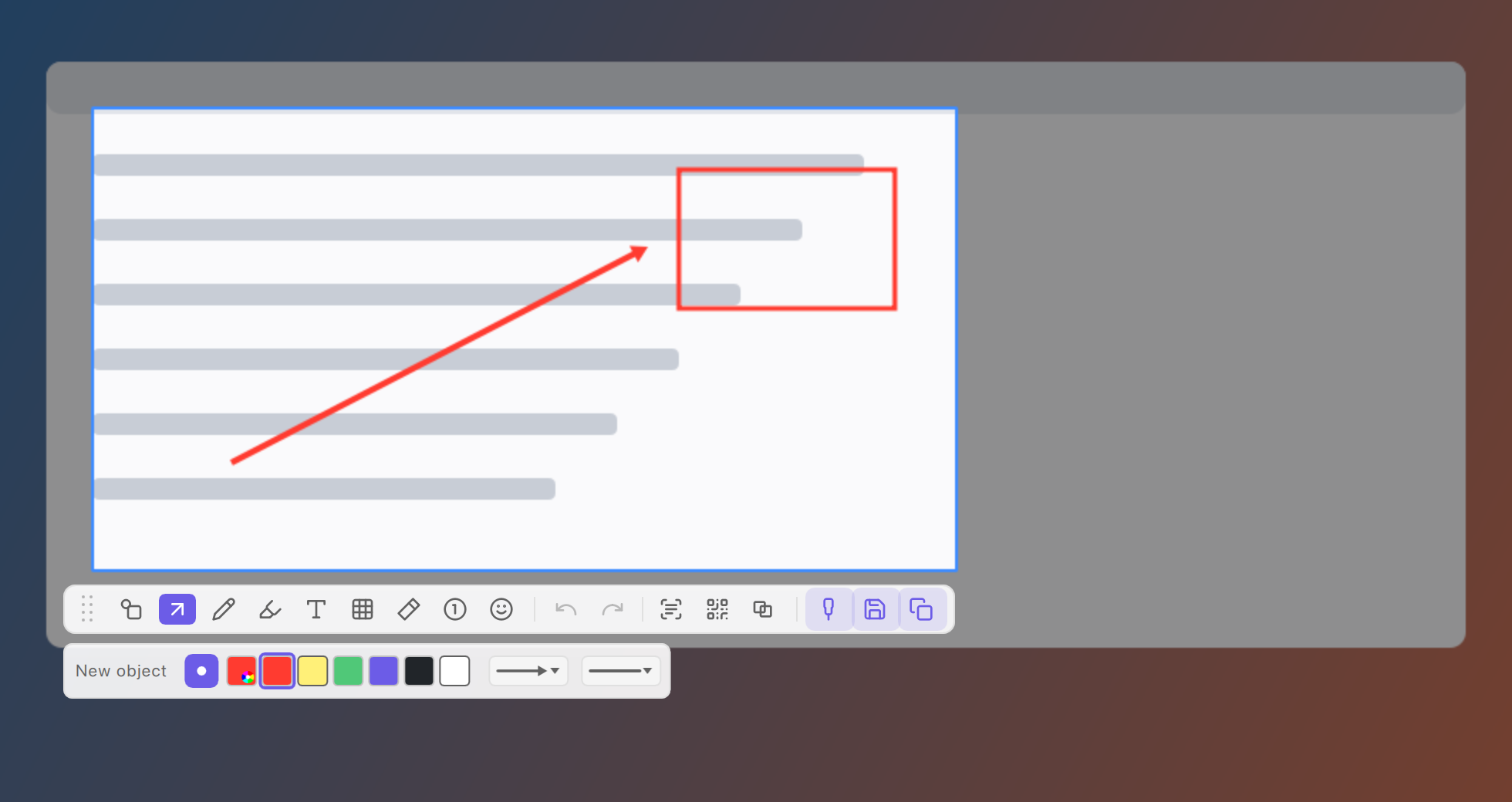
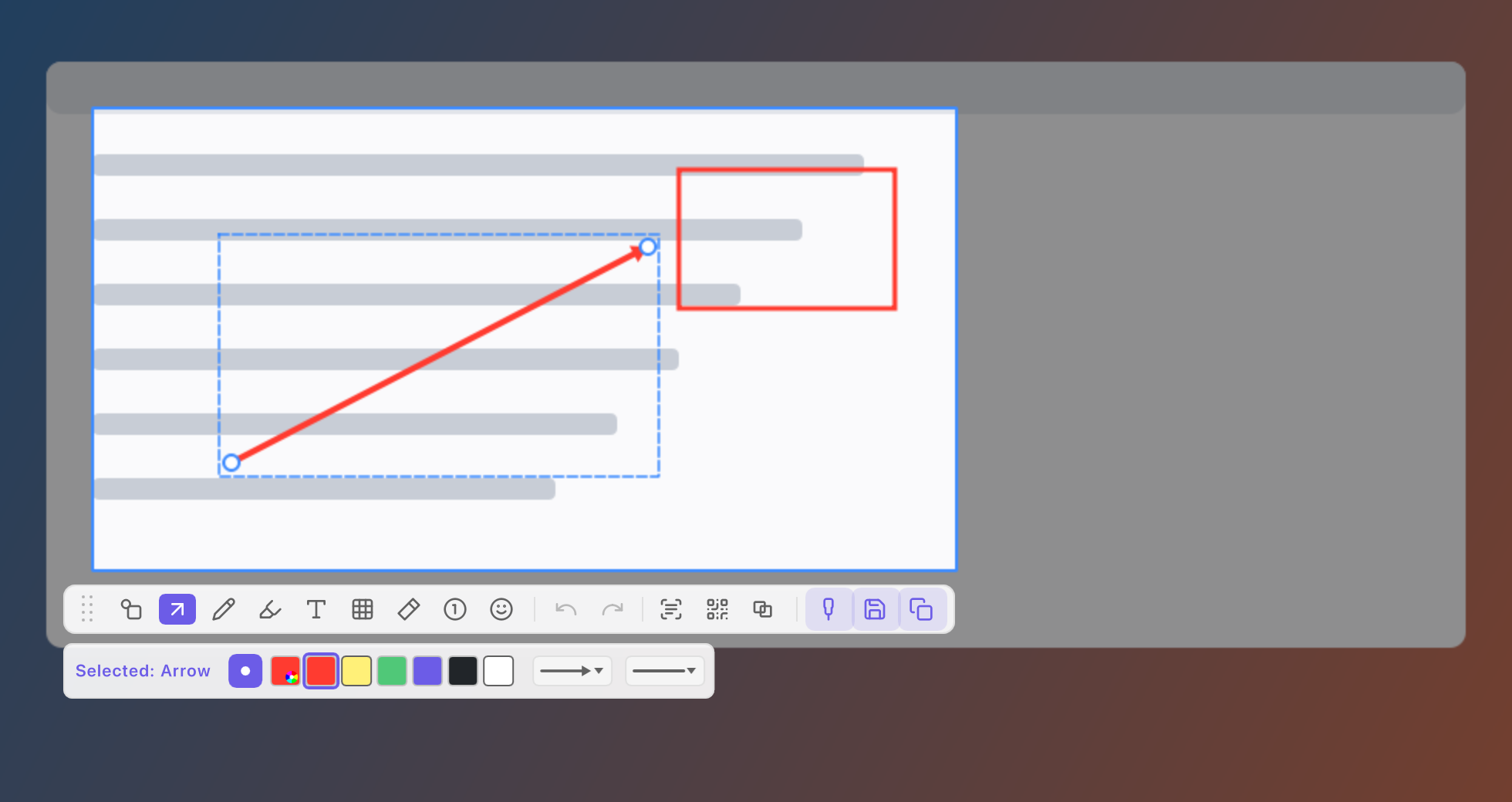
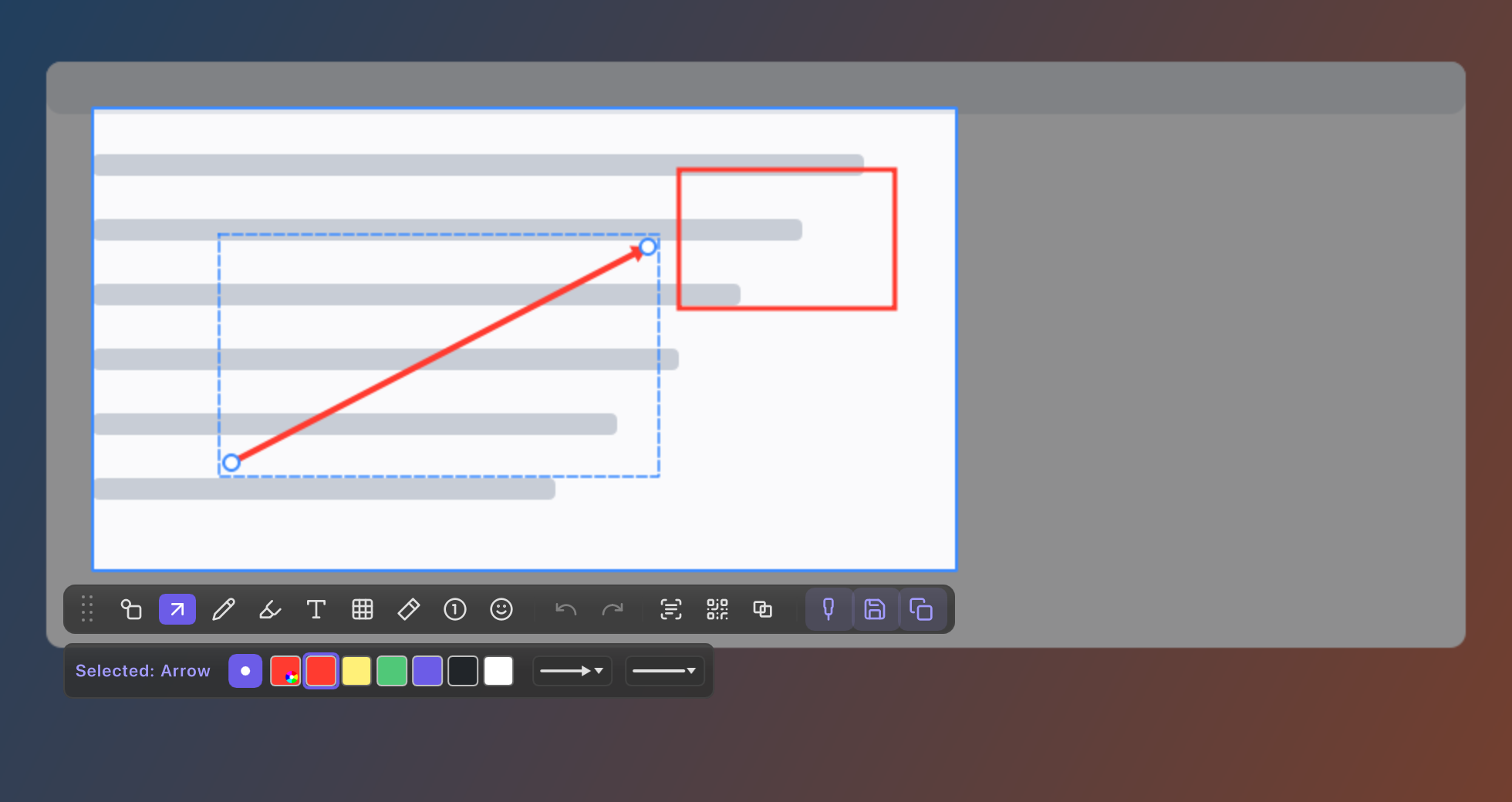
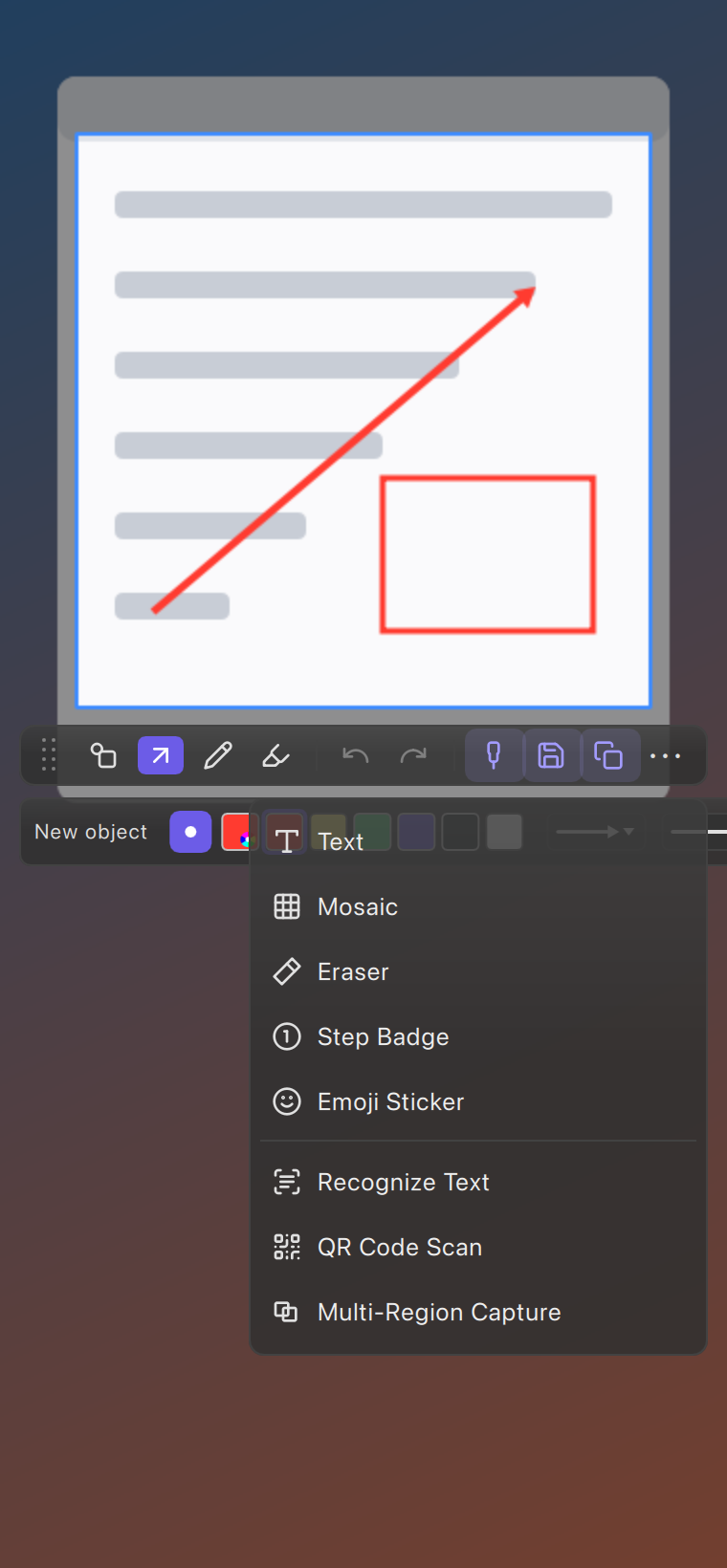
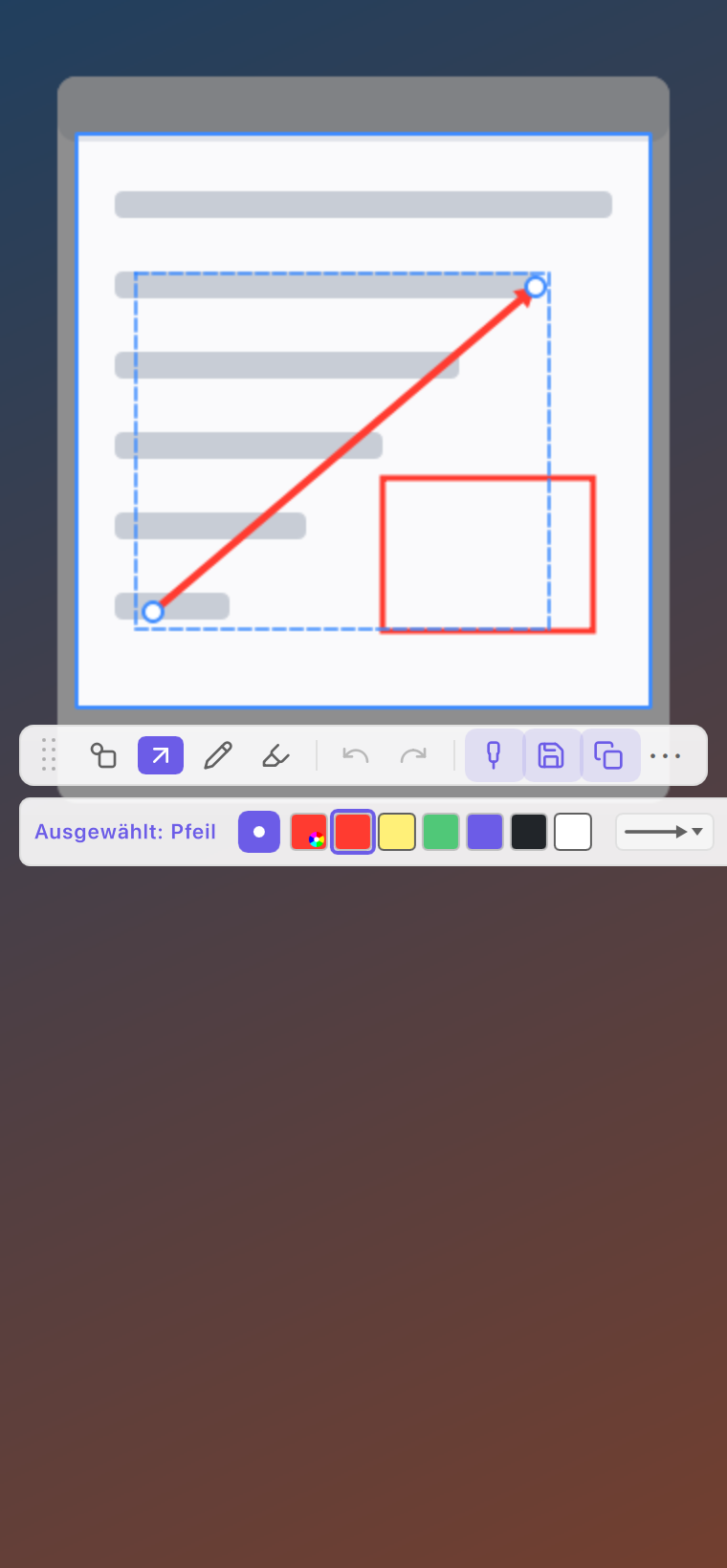
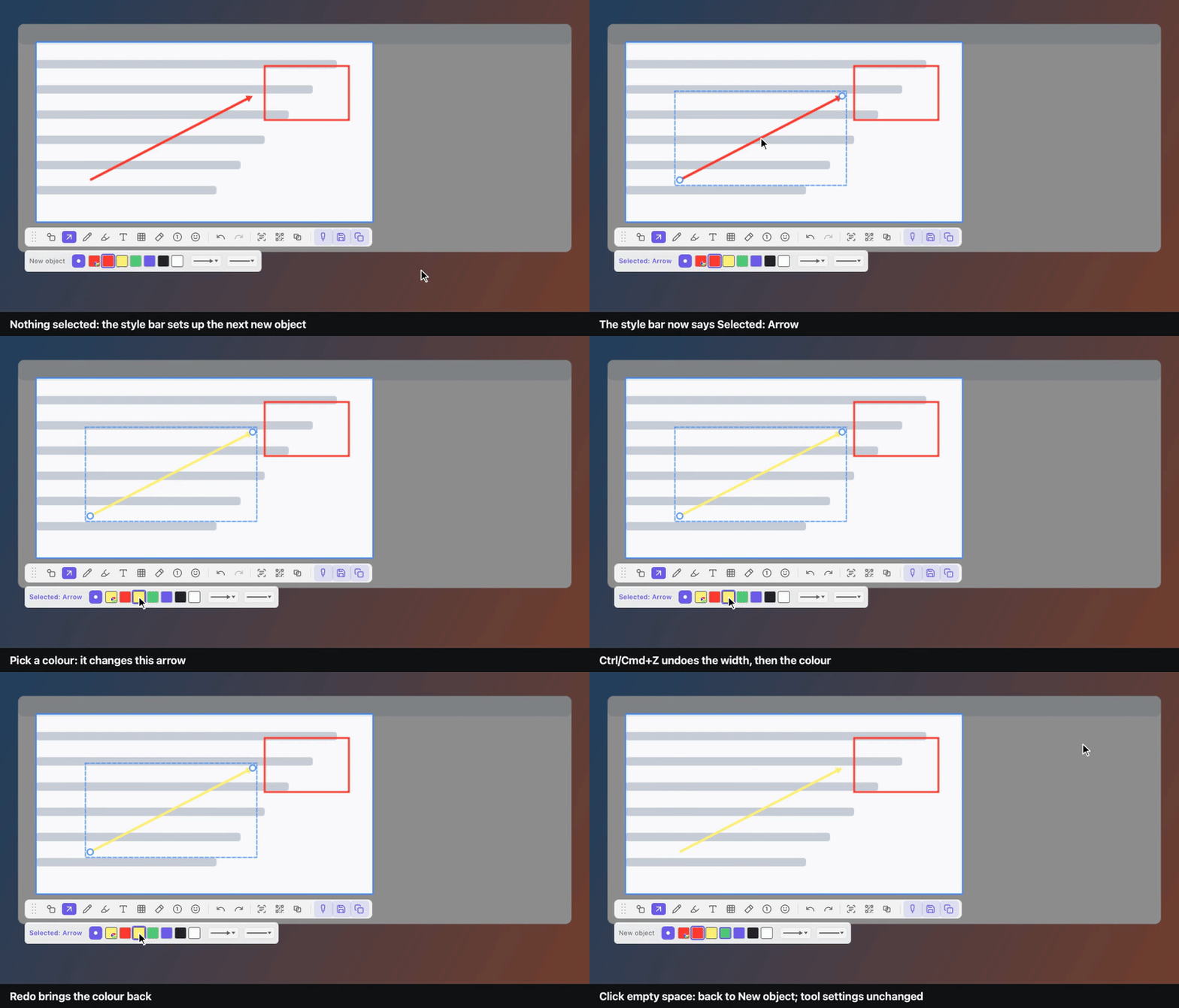
Operation video: select an arrow, change its colour and width, undo, redo, deselect. MP4 next to the GIF.
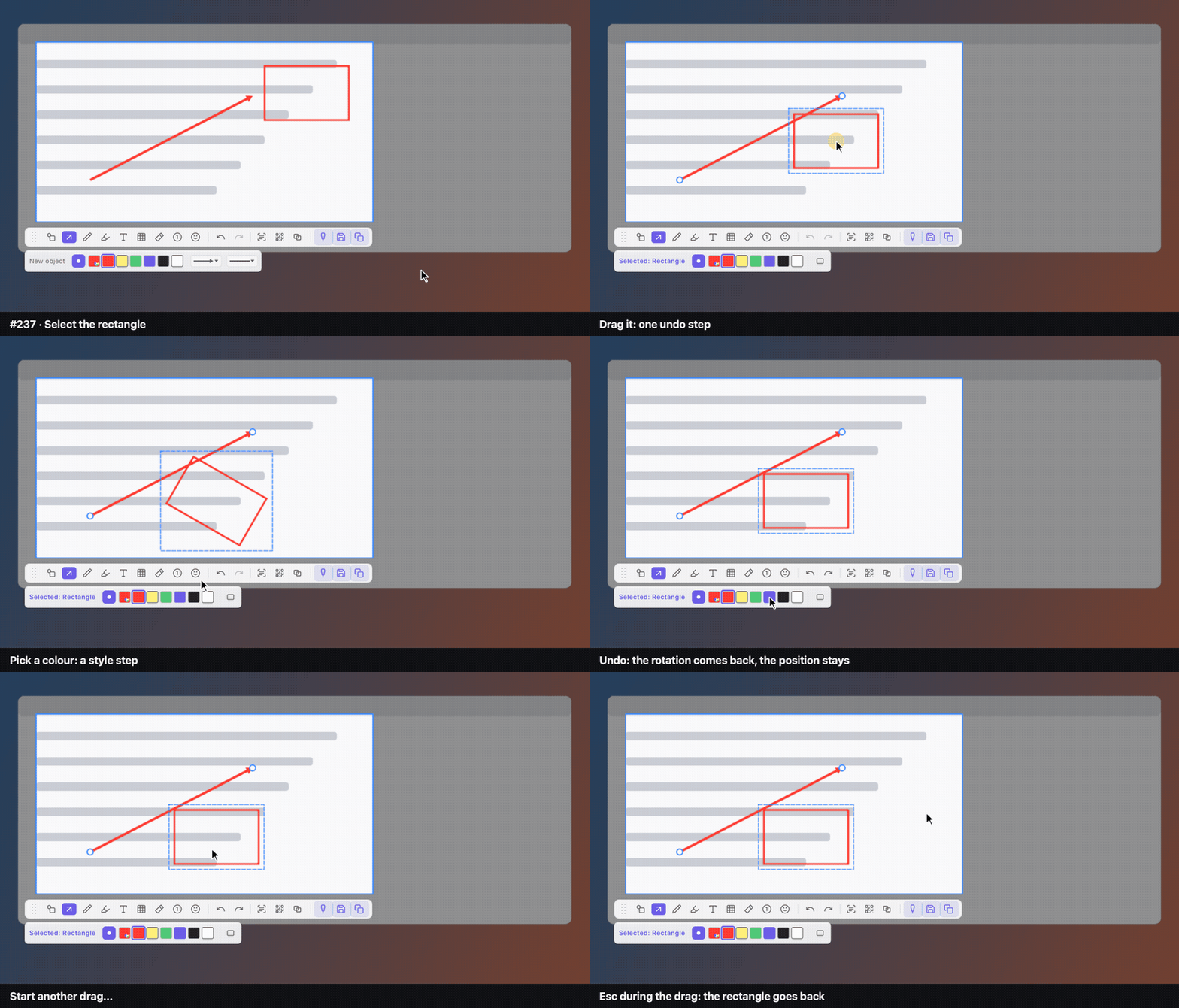
Geometry undo (#237): drag a rectangle, rotate it, change its colour, undo three times (colour, rotation, position come back in turn), redo, then press Esc during another drag. The drags go through the same ShapeAnnotationEditor all three surfaces use. Move, resize, rotate, arrow endpoint/curve and polyline vertex drags, and a text re-edit are each one undo step; style and geometry steps undo independently.
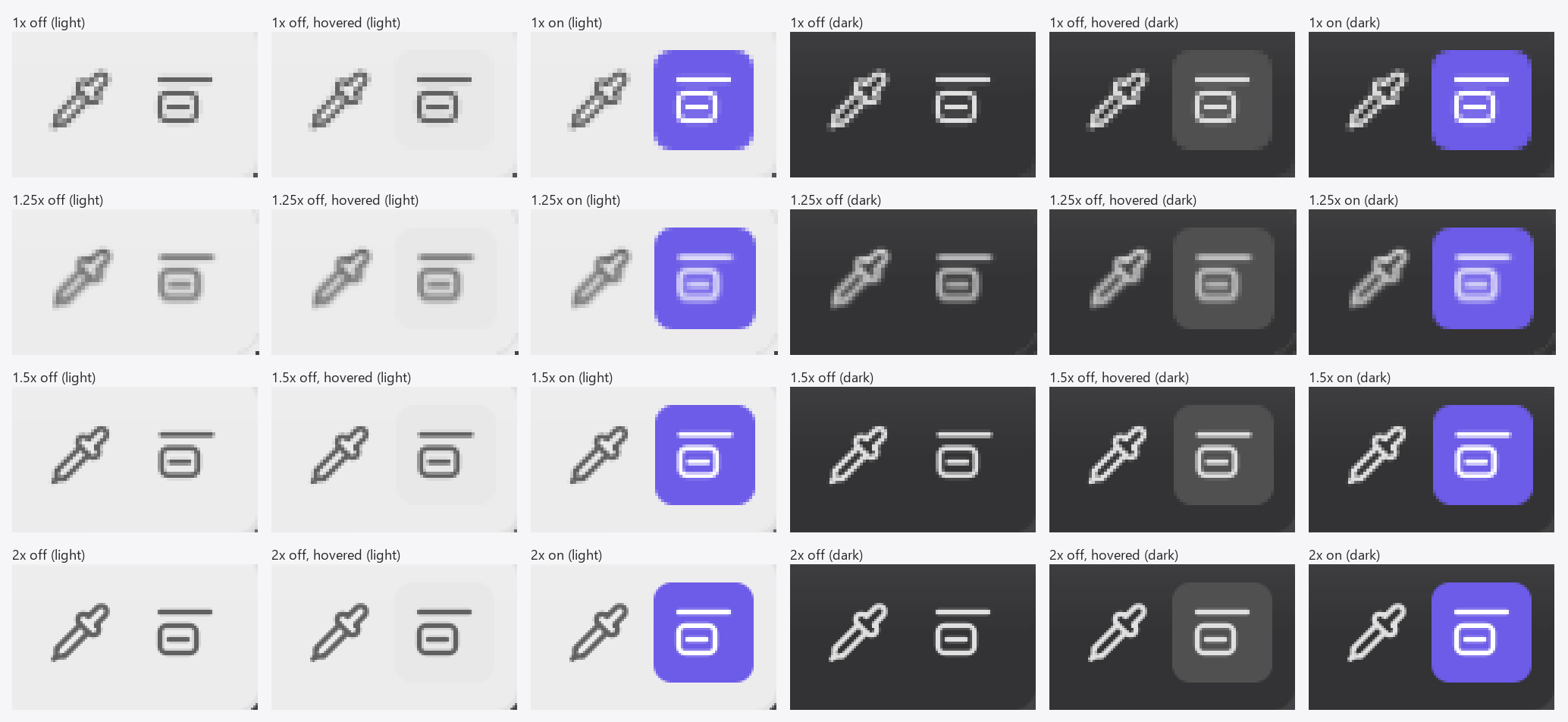
Marker Snap to text (#304)
Rendered on Windows 10 / Qt 6.12.0 from the real toolbar and style strip QML, with the tooltip drawn inline where ToolbarTooltipController places it.
States at 2×, light and dark (rows): off, off hovered with the tooltip, on, and on hovered (columns).

The icon at 14 px next to the eyedropper, on 1×, 1.25×, 1.5× and 2× (rows), off / hovered / on, light and dark (columns). Its strokes sit on 14 px pixel centers, so it is pixel-sharp at 1× and stays crisp at 1.5× and 2×. At 1.25× it is anti-aliased, but each stroke stays separate: three strokes 3 px apart at 14 px cannot also line up with the 18 px raster.
The tooltip in English, Traditional Chinese and Greek (the longest translation) at 2×. The toggle stays 22 px in every language (only the existing “New object” label changes the strip’s width), and the tooltip is not cut off:
Regenerating the toolbar evidence
cd build
SNAPTRAY_TOOLBAR_DESIGN_DIR=../docs/assets/images/developer/toolbar ./bin/Qml_ToolbarEvidence toolbarStates
SNAPTRAY_TOOLBAR_DESIGN_DIR=../docs/assets/images/developer/toolbar SNAPTRAY_TOOLBAR_TRANSLATION=$PWD/snaptray_de.qm ./bin/Qml_ToolbarEvidence toolbarStates:light
SNAPTRAY_TOOLBAR_VIDEO_DIR=/tmp/toolbar-video ./bin/Qml_ToolbarEvidence operationVideo
ffmpeg -framerate 10 -i /tmp/toolbar-video/frame-%05d.png -pix_fmt yuv420p toolbar-selected-style.mp4
SNAPTRAY_TOOLBAR_VIDEO_DIR=/tmp/toolbar-video ./bin/Qml_ToolbarEvidence geometryUndoVideo
ffmpeg -framerate 10 -i /tmp/toolbar-video/geometry-undo/frame-%05d.png -pix_fmt yuv420p annotation-geometry-undo.mp4
SNAPTRAY_TOOLBAR_DESIGN_DIR=/tmp/marker-snap ./bin/Qml_ToolbarEvidence markerTextSnapStates
SNAPTRAY_TOOLBAR_DESIGN_DIR=/tmp/marker-snap SNAPTRAY_TOOLBAR_TRANSLATION=$PWD/snaptray_zh_TW.qm ./bin/Qml_ToolbarEvidence markerTextSnapStates:light
On Windows with QT_QPA_PLATFORM=offscreen, also set QT_QPA_FONTDIR=C:\Windows\Fonts, or text renders as boxes. Use QT_SCALE_FACTOR (1, 1.25, 1.5, 2) to render other device pixel ratios. The three Snap to text sheets are crops of those renders.
Pin window
Applies to pin windows (#225). Design: docs/superpowers/specs/2026-11-05-pin-window-controls-design.md.
Contract
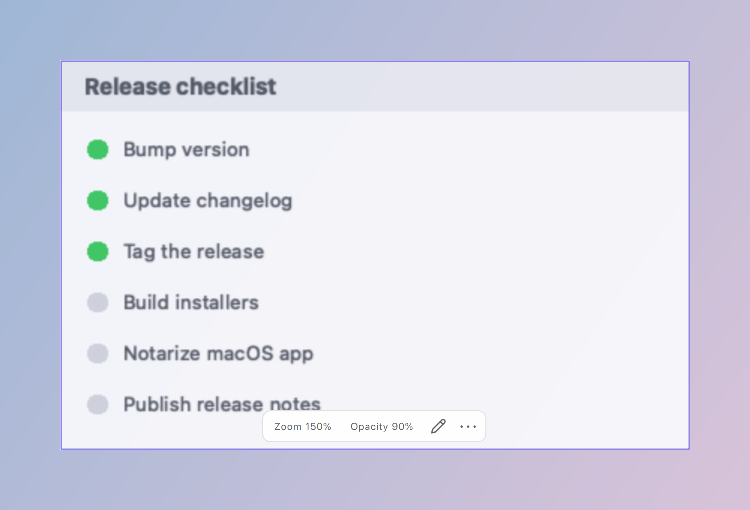
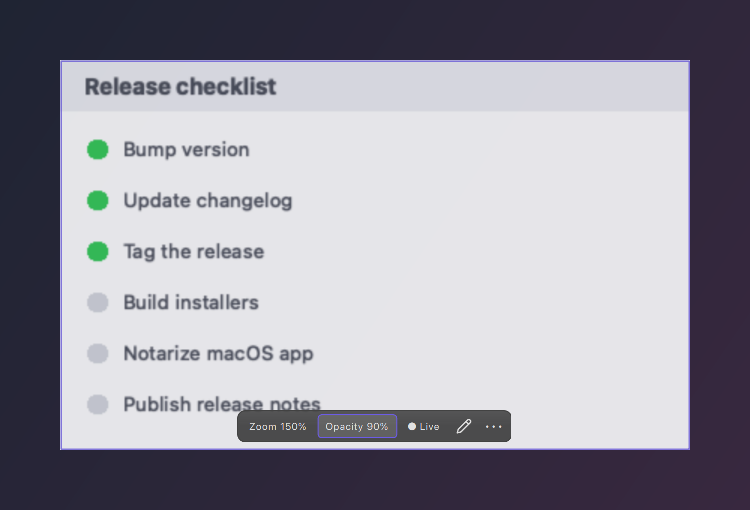
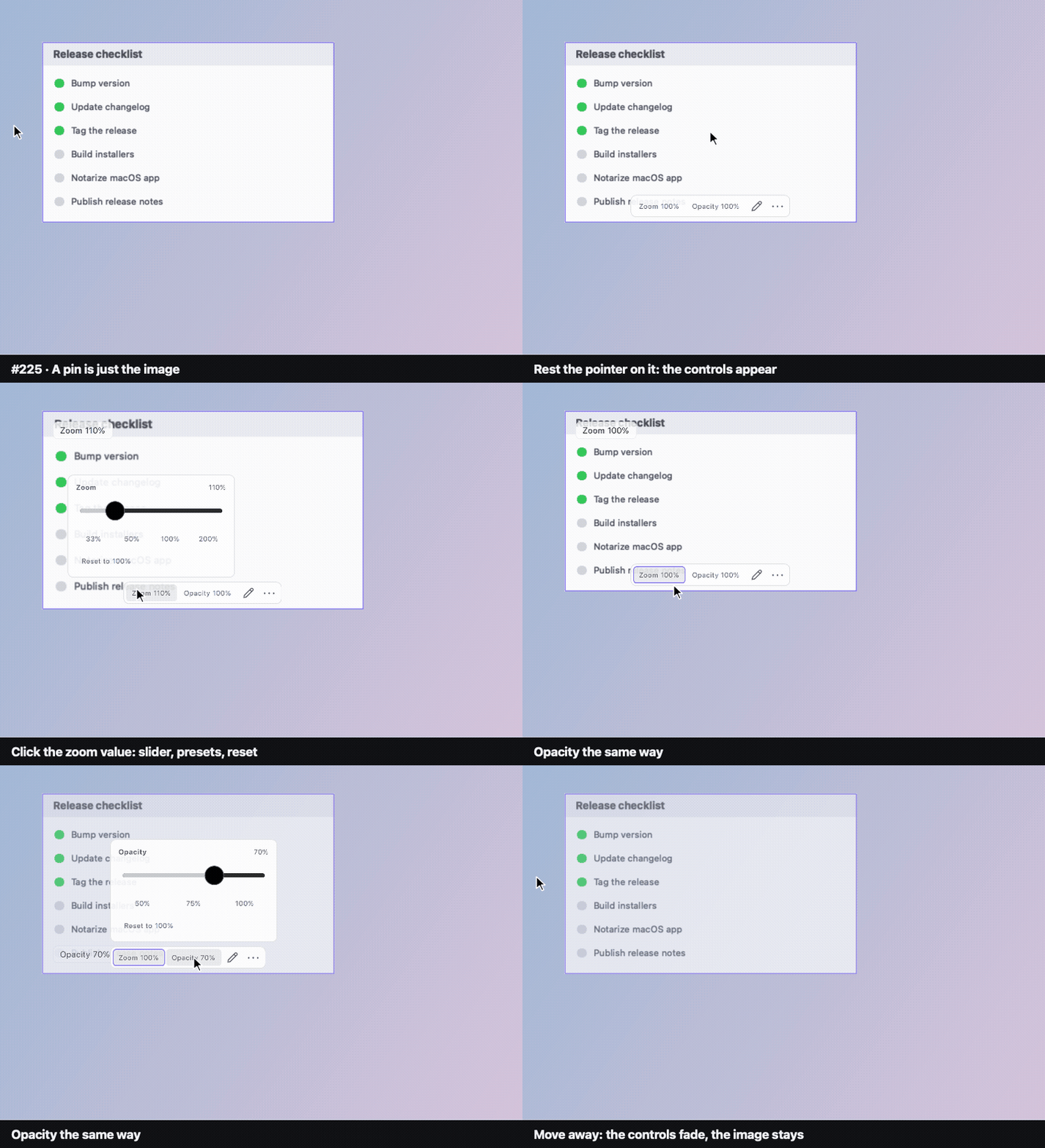
- A pin is the image. Resting the pointer on it for 300 ms shows a hover bar inside its bottom edge (
PinHoverBar, a non-activating QML tool window): Zoom N%, Opacity N%, a Live/Paused chip while Live Update runs, Annotate and ⋯. It fades 500 ms after the pointer leaves the pin, the bar and its panel, and never shows during a drag or edge resize, with the annotation toolbar open, in region-layout editing, in click-through, or with “Show controls on hover” off. - The bar keeps an 8 px inset on every side. When the full bar does not fit, it shows the two values and ⋯; when even that does not fit, it is not shown. Both widths are measured (labels differ by language).
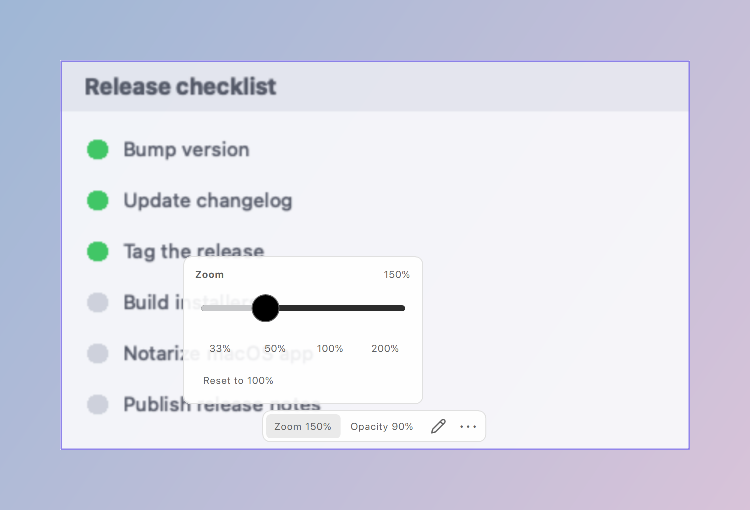
- A value opens a panel above its button: slider, presets and Reset to 100%; Esc, another key or a click outside closes it.
- Keys on a focused pin:
Ctrl/Cmd+=/-/0(zoom in, out, reset),[/](opacity),Ctrl/Cmd+](reset opacity),Space(annotate),L/P(Live). The bar and panel are pointer-only (non-activating windows); every action on them has one of these keys, and any key other than Esc closes an open panel before the pin handles it. - Badges name the value (“Zoom 150%”, “Opacity 80%”) for every change; the zoom badge moves to the top-right while Live Update holds the top-left.
- Click-through shows “Click-through · Turn off ✕” on the shared glass at the pin’s top-right; the tray adds “Turn Off Click-through for All Pins” while any pin uses it.
-
The context menu is grouped View Output Modes Pins Close, with shortcut hints.
Acceptance matrix
| Check | macOS | Windows | Ubuntu 22.04 X11 beta |
|---|---|---|---|
| Build and repository tests | scripts/run-tests.sh, all suites |
Local Windows build passed; focused UI regression 7/7; earlier full baseline and reruns documented in #210 | CI build and tests only |
| Hover bar, panels, compact bar, light/dark/German | Evidence below (PinWindow_Evidence) |
Pending manual pass (#238) | Original GNOME stacking failure fixed in #250; native stacking regression passes (see below). Full theme/localization manual pass remains pending |
| Bar follows pin drag/zoom; hides in excluded states | PinWindow_PinHoverBar, PinWindow_PinHoverIntegration |
CI tests only | Both automated suites pass under GNOME X11 / Qt 6.12.0 (#250); physical-pointer acceptance remains pending |
| Click-through pill and tray exit | PinWindow_Transform, App_MainApplicationTrayMenu; screenshot below |
Pending manual pass (#238) | Not supported (no click-through) |
| Physical DPI scales | 2× only | Pending (#238) | Physical 2×; 1× and 1.5× renderings |
| Screen reader names | AX audit passed after #238 fixes (audit); no VoiceOver speech session; Qml_PinHoverBarQml, PinWindow_Transform |
Pending (Narrator) | AT-SPI exposes “Pin controls” with named buttons; on 747e15df (before #247) the pin window itself carried only the app name (#253) |
X11 stacking regression (#250)
The hover bar and value panel inherit the pin owner’s
X11BypassWindowManagerHint before native window creation. Their existing
raise() after showing then keeps them above an override-redirect pin, while
ordinary managed owners keep managed overlays.
On Ubuntu 22.04.5 / GNOME X11 / Qt 6.12.0, the new
PinWindow_PinHoverIntegration::x11HoverWindowsStackAbovePin failed before
this fix and passed after it, for both lazy creation and windows prepared for
Live Update capture exclusion. It checks native root-child stacking order
(including WM frames), map state and override-redirect state for the bar and
both panels, then hides and re-shows the bar after raising the pin.
Run it from a GNOME X11 session after building the test target:
QT_QPA_PLATFORM=xcb QT_QUICK_BACKEND=software \
  ./build/bin/PinWindow_PinHoverIntegration x11HoverWindowsStackAbovePin
The same test runs under Xvfb in CI, but a pass there alone is not evidence of correct stacking under a window manager. This automated check does not replace the remaining manual theme, localization and accessibility acceptance items.
Evidence
macOS 27.0.1 / Qt 6.12.0, 2×. The pin and its floating windows are grabbed and composited at their real positions over a generated backdrop.
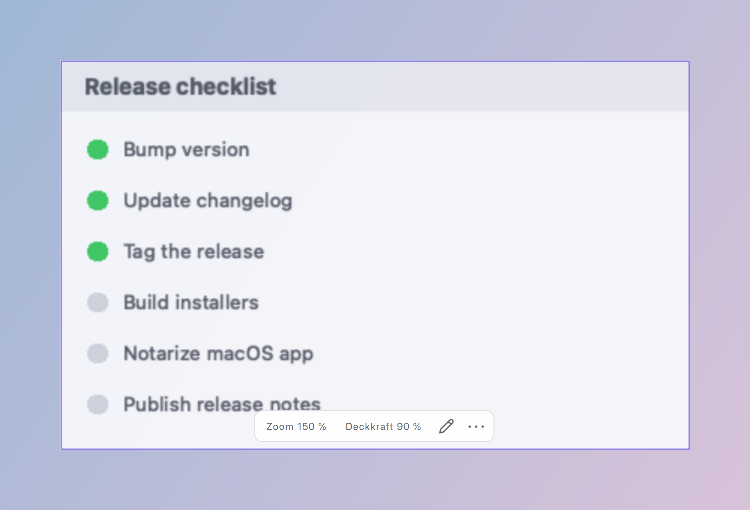
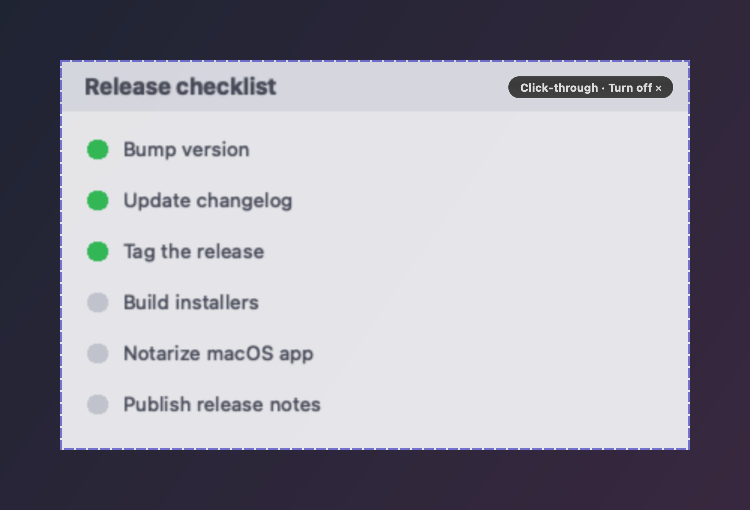
Operation video: hover, zoom panel, reset, opacity panel, leave.
Regenerating the pin evidence
cd build
SNAPTRAY_PIN_DESIGN_DIR=../docs/assets/images/developer/pin ./bin/PinWindow_Evidence screenshots
SNAPTRAY_PIN_DESIGN_DIR=../docs/assets/images/developer/pin SNAPTRAY_PIN_TRANSLATION=$PWD/snaptray_de.qm ./bin/PinWindow_Evidence screenshots:light
SNAPTRAY_PIN_VIDEO_DIR=/tmp/pin-video ./bin/PinWindow_Evidence operationVideo
ffmpeg -framerate 10 -i /tmp/pin-video/frame-%05d.png -pix_fmt yuv420p -vf "pad=ceil(iw/2)*2:ceil(ih/2)*2" pin-hover-controls.mp4
Library
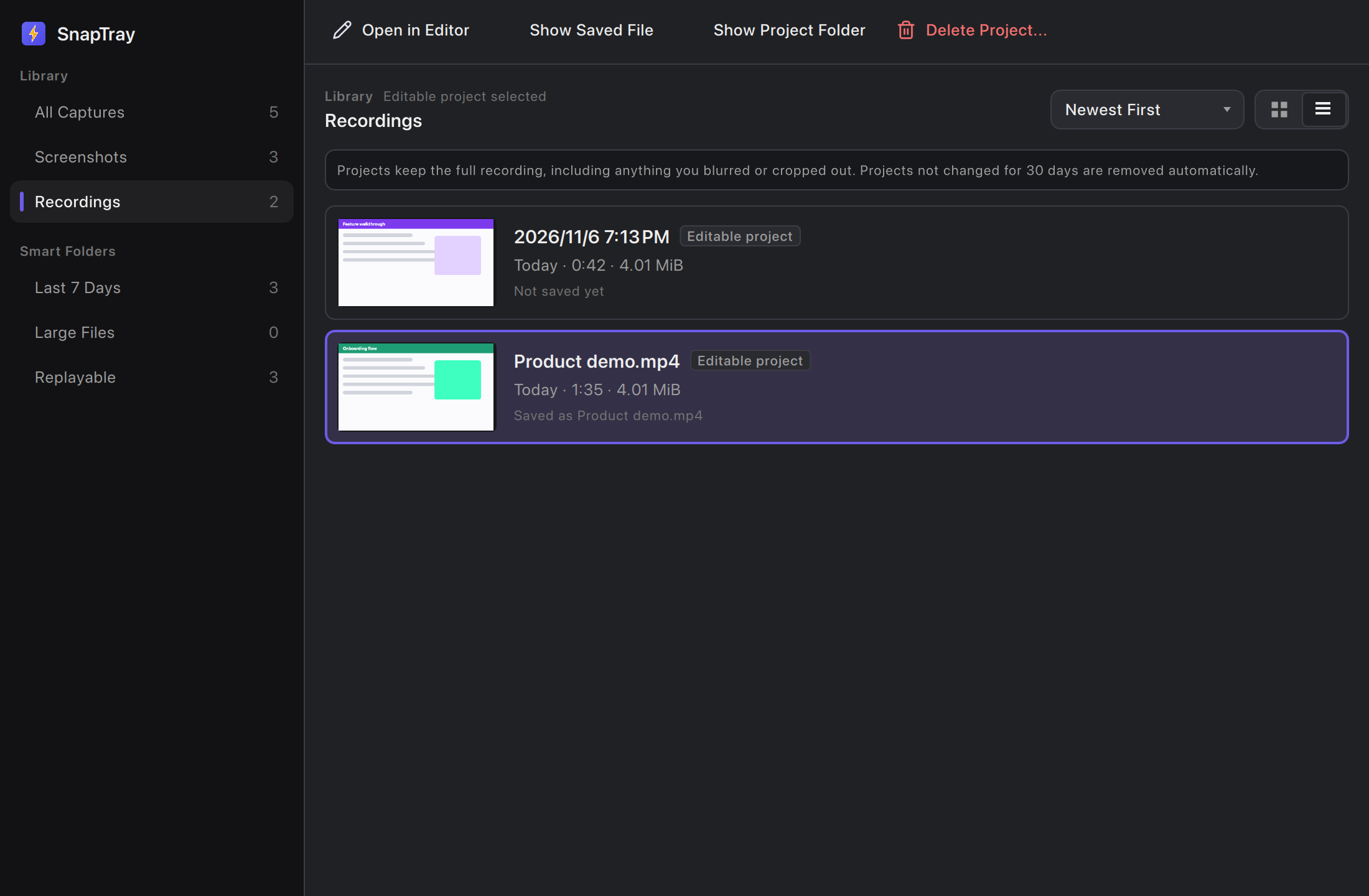
Applies to the Library window (#226): the former History window, now holding screenshots and editable recording projects. Design: docs/superpowers/specs/2026-11-05-capture-library-design.md.
Contract
- One window, opened by the tray’s Library (hotkey “Library”) and, on its Recordings section, by Recording Library…. The storage models stay separate:
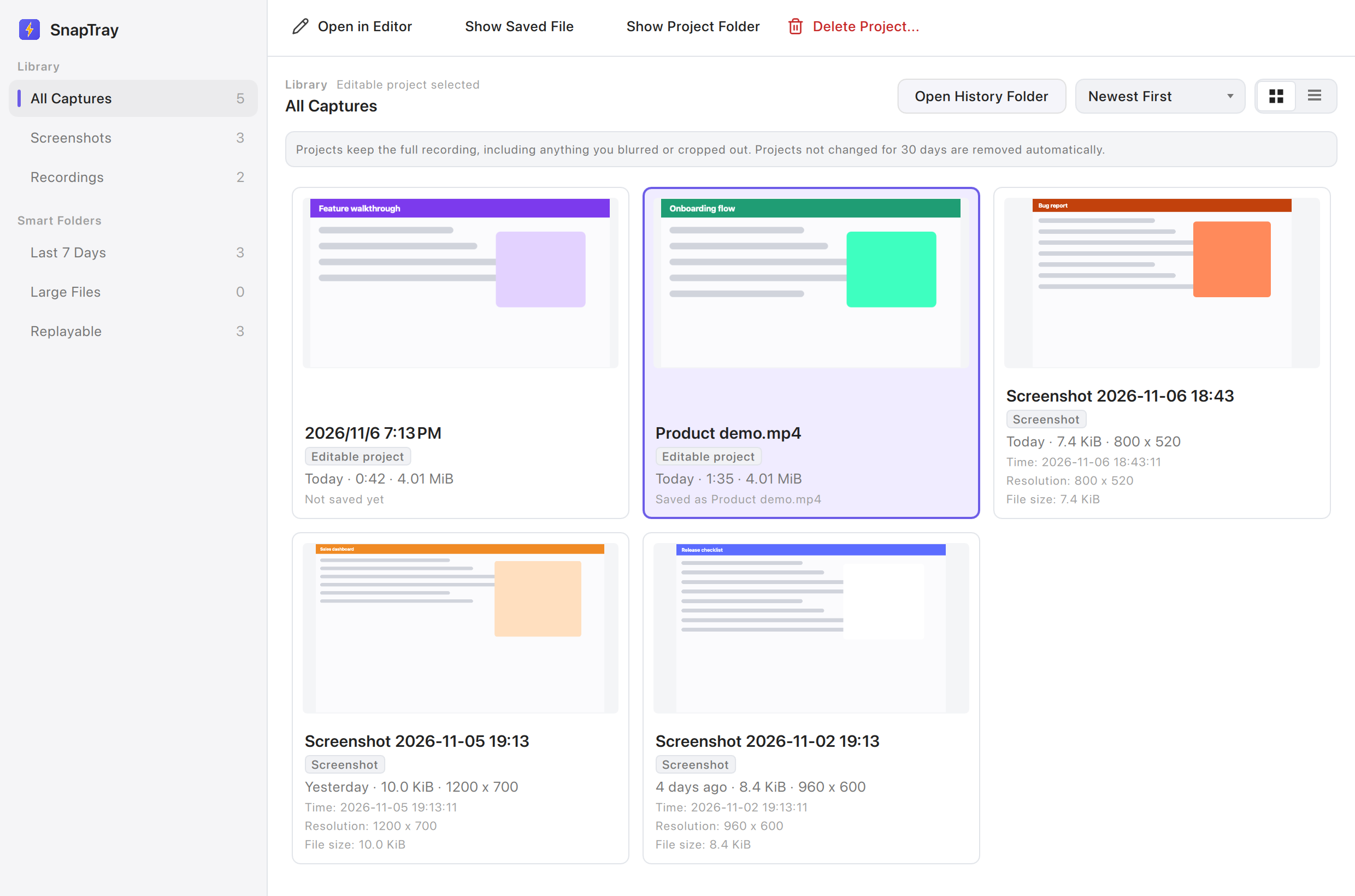
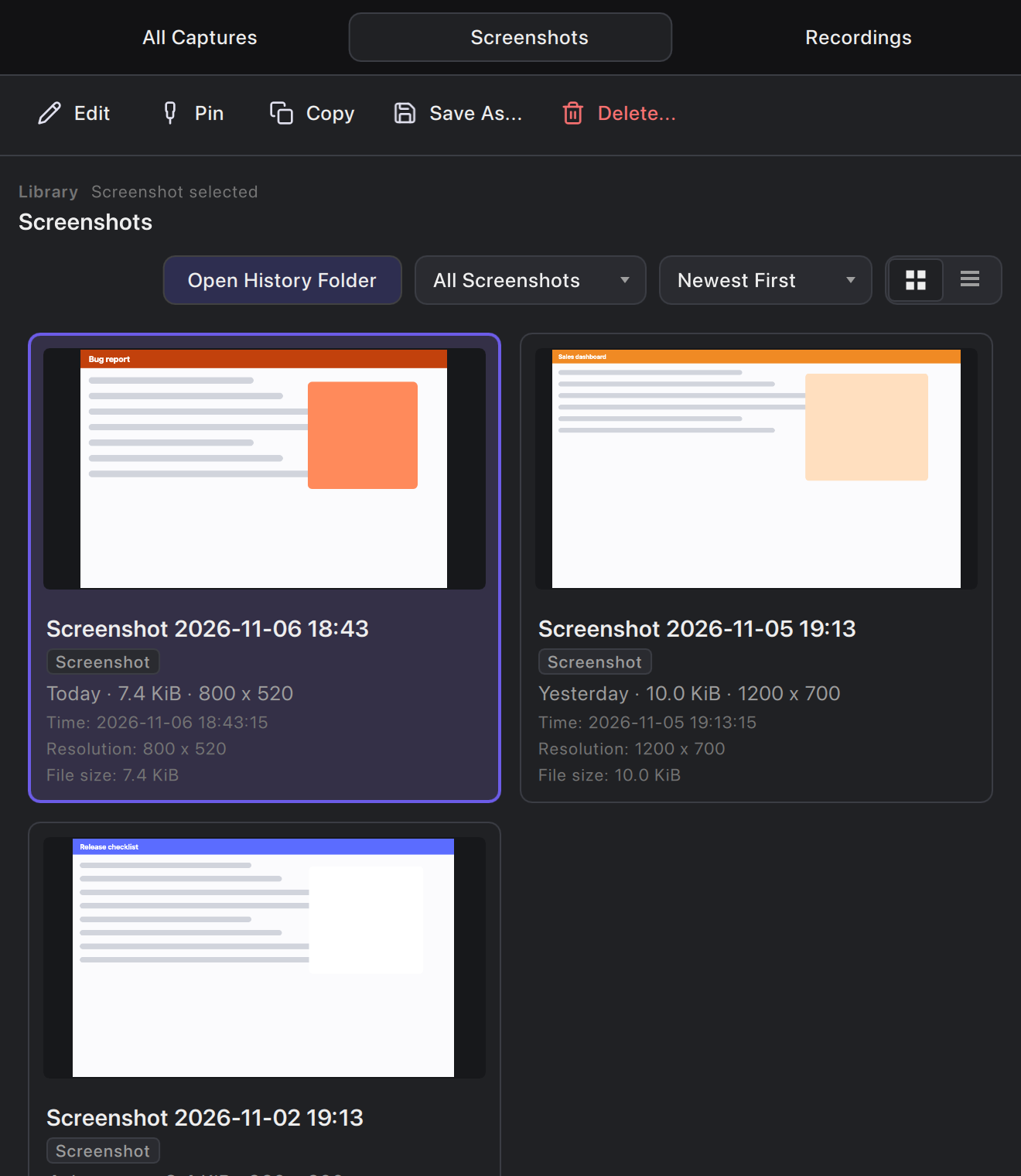
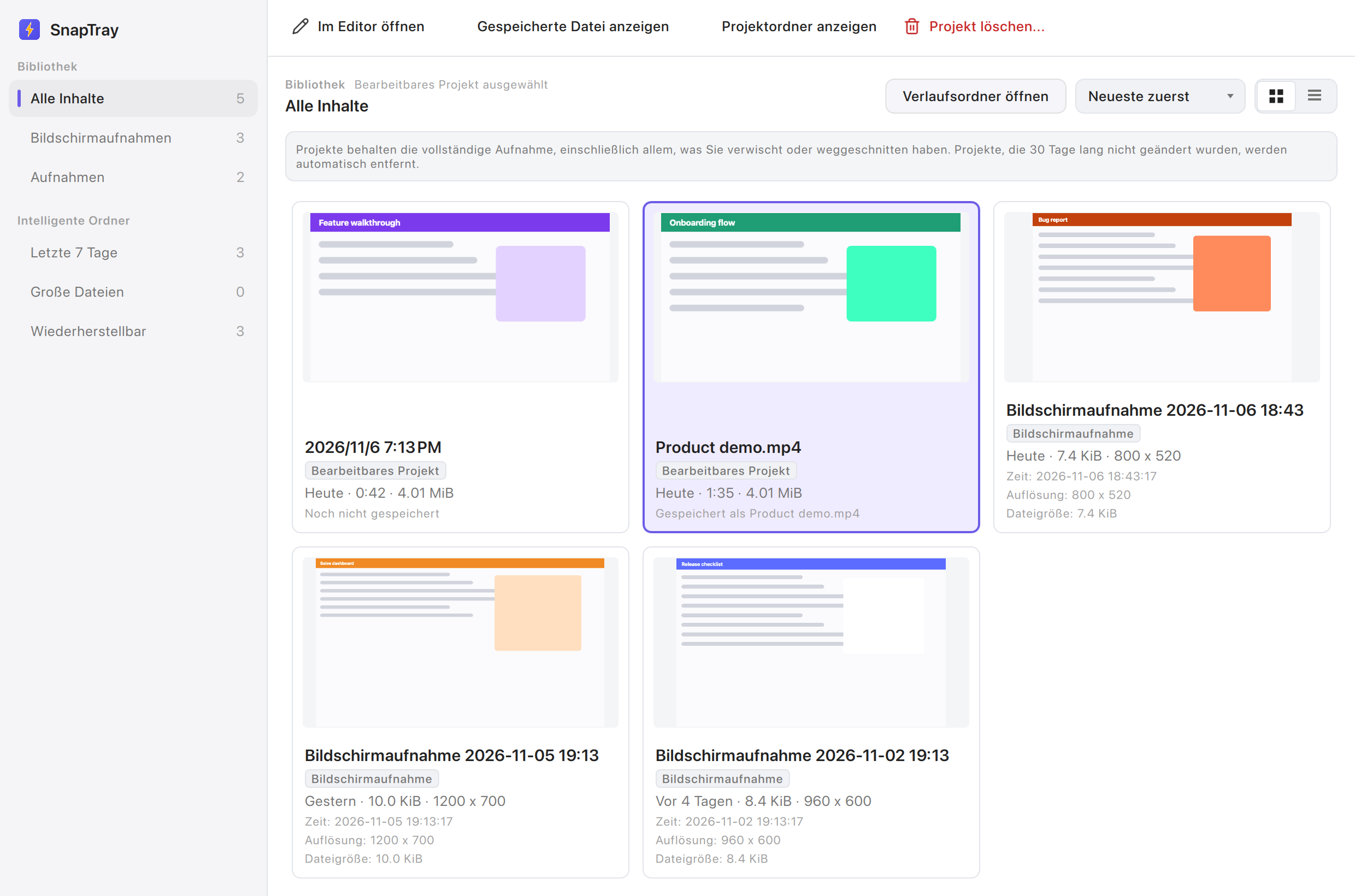
HistoryStorefor screenshots,RecordingProjectsfor projects.LibraryModelmaps both into one list, and every row keeps its source row so actions reach the right backend. - The sidebar has All Captures, Screenshots and Recordings, each with a count. Smart Folders filter screenshots. “All Captures” merges both kinds in the window’s sort order: newest or oldest by capture or recording time, or largest first.
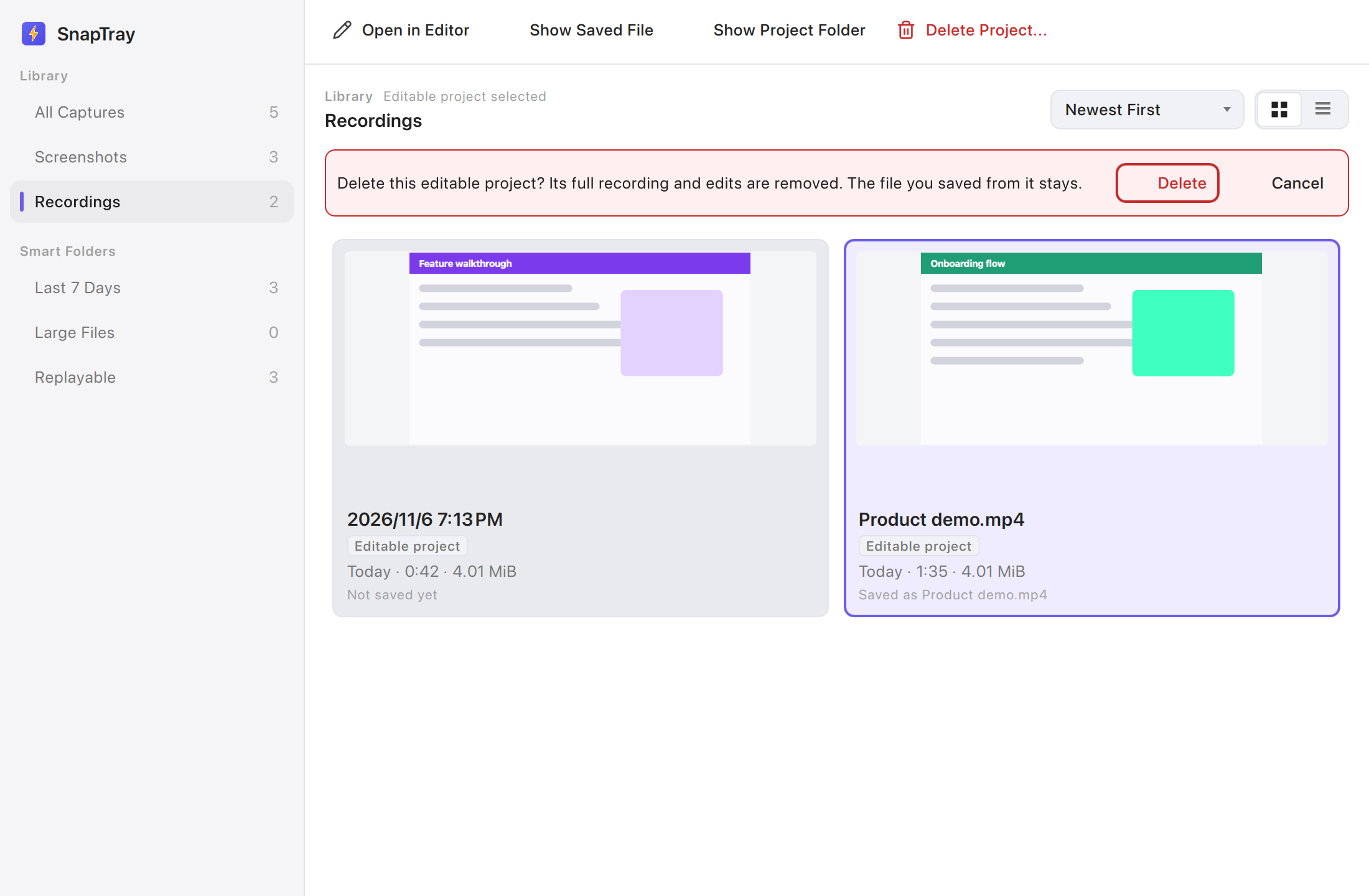
- No row has its own buttons. One command bar and one context menu act on the selection, with actions for its kind:
- Screenshot: Edit, Pin, Copy, Save As…, Delete…
- Project: Open in Editor, Show Saved File (only when that file exists), Show Project Folder, Delete Project…
The caption says what is selected.
Returnopens,Deleteasks. - Each card or row names its kind (“Screenshot”, “Editable project”). A project’s detail line says whether it was saved and under which name, or that the saved file was moved, or that it is open in the recording preview. A project open in the preview cannot be opened again or deleted.
- Delete always asks, in a strip above the results that names what goes and what stays. Esc, Cancel or a new selection cancels it, and Esc closes the window only when nothing is pending.
- Where projects are shown, a note says that projects keep the full recording, how many days unchanged projects are kept, and whether keeping is off.
- Below 820 px the sidebar becomes a row of section buttons and the smart folders move into a menu next to the sort (Screenshots only); below 720 px the header stacks. The minimum window width is 640 px.
Surfaces (#249)
The Library is a work window, so it uses the same solid surfaces as the recording editor and Settings rather than the floating glass of toolbars and pins:
- The window is
editorSurfaceedge to edge, with no inset frame. The sidebar is a full-heightsettingsSidebarBgcolumn split from the content by a 1 pxeditorBorderline, as in Settings; narrow windows show the sections as a bar in the same color. - Actions sit in a flat top bar like the editor’s:
editorSurfacewith a bottomeditorBorderline, borderless buttons that showeditorControlHoveron hover and a 2 px accent ring on focus. - The page title uses the Settings page title level (
fontSizeH3, semibold), with the “Library · what is selected” caption above it. - Cards and rows use
radiusMedium, aneditorSurfacefill and a 1 pxeditorBorderedge; thumbnails sit oneditorCanvas. Selection is aneditorSelectiontint plus a 2 px accent edge, so it does not rest on hue alone; hover iseditorControlHover. - Controls (sort, smart folder menu, Grid/List switch) and the project note are recessed
editorControl/editorCanvasfields witheditorBorderedges. The delete strip keeps its red tint (thumbnailCardErrorBackground,editorDestructiveTextedge).
Acceptance matrix
| Check | macOS | Windows | Ubuntu 22.04 X11 beta |
|---|---|---|---|
| Build and repository tests | scripts/run-tests.sh |
Local Windows build passed; focused UI regression 7/7; earlier full baseline and reruns documented in #210 | CI build and tests only |
| Sections, counts, merge order, roles | Qml_LibraryModel, Qml_LibraryWindow |
CI tests only | CI tests only |
| Actions per kind, delete confirmation, busy project, privacy note | Qml_LibraryWindow |
CI tests only | CI tests only |
| Wide and narrow, light/dark/German | Evidence below (Qml_LibraryEvidence) |
Pending manual pass (#238) | Fixtures on Ubuntu at 2×, light and dark; German not run |
| Physical DPI scales | 2× only | Pending (#238) | Physical 2× only |
| Screen reader names | AX audit passed after #238 and #248 fixes (audit); no VoiceOver speech session | Pending (Narrator) | Not inspected |
Evidence
macOS 27.0.1 / Qt 6.12.0, 2×, generated demo captures.
Regenerating the Library evidence
cd build
SNAPTRAY_LIBRARY_DESIGN_DIR=../docs/assets/images/developer/library ./bin/Qml_LibraryEvidence screenshots
SNAPTRAY_LIBRARY_DESIGN_DIR=../docs/assets/images/developer/library SNAPTRAY_LIBRARY_TRANSLATION=$PWD/snaptray_de.qm ./bin/Qml_LibraryEvidence screenshots:light
Settings and Beautify
Applies to the Settings window and the Beautify panel (#227). Design: docs/superpowers/specs/2026-11-06-settings-beautify-design.md.
Contract
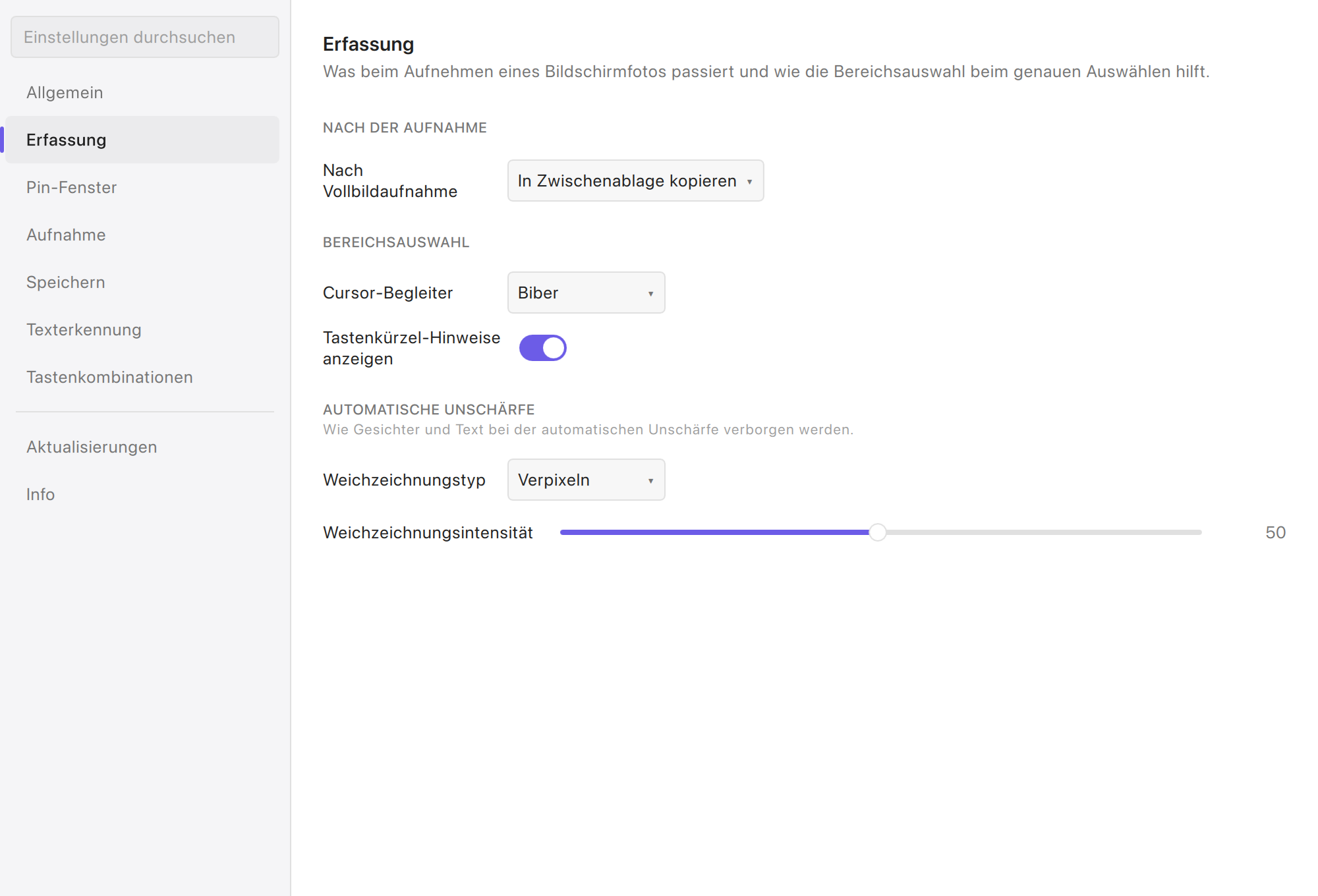
- Pages by task: General, Capture, Pin Windows, Recording, Saving, Text Recognition, Hotkeys. Updates and About come after a divider.
- Recording is shown only when
recordingSupported, and Text Recognition only whenocrSettingsVisible. - Pages load on first selection.
- The keys are
general,capture,pins,recording,saving,ocr,hotkeys,updates,about.SettingsWindow.selectPage(key)opens one.
- Recording is shown only when
- What moved:
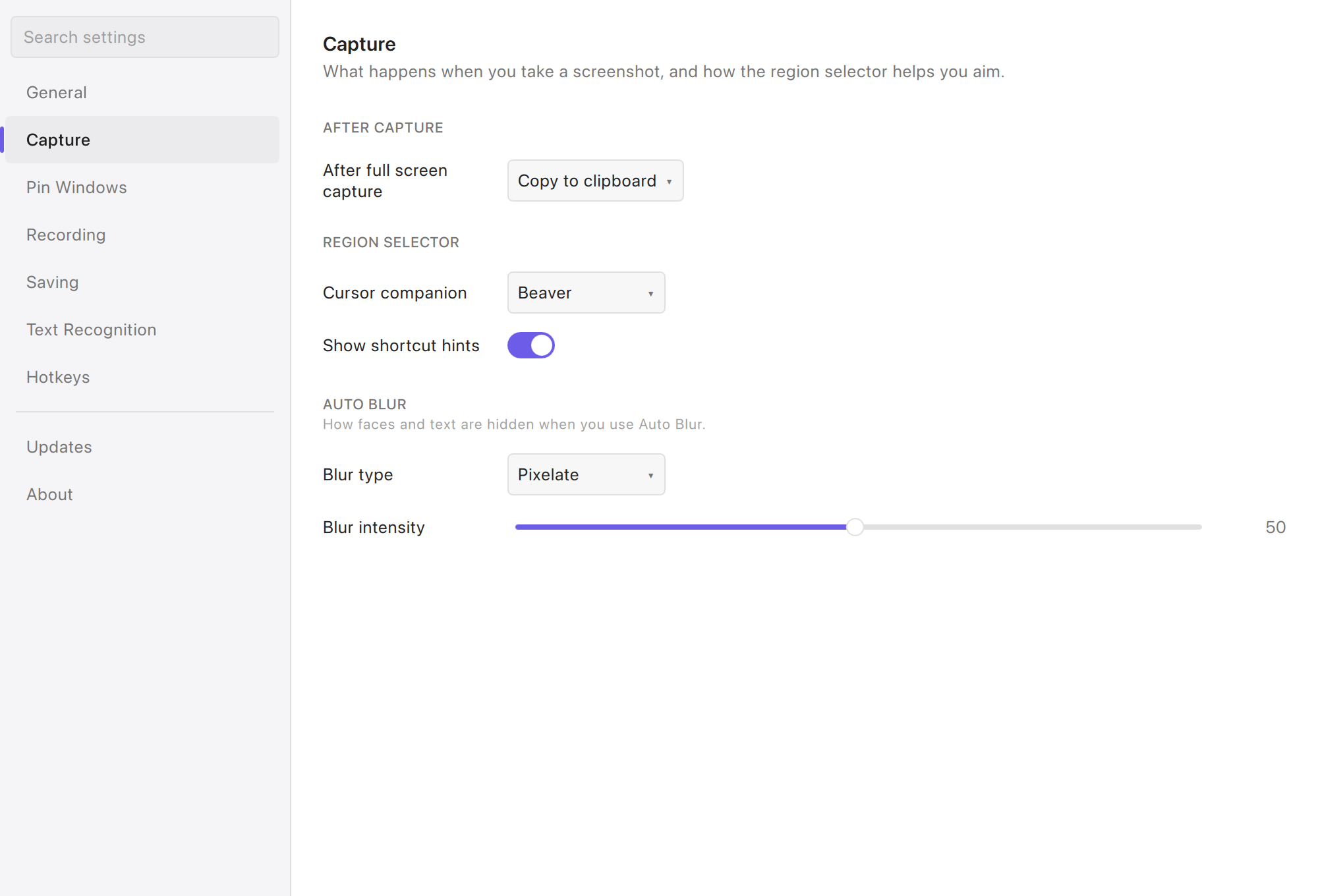
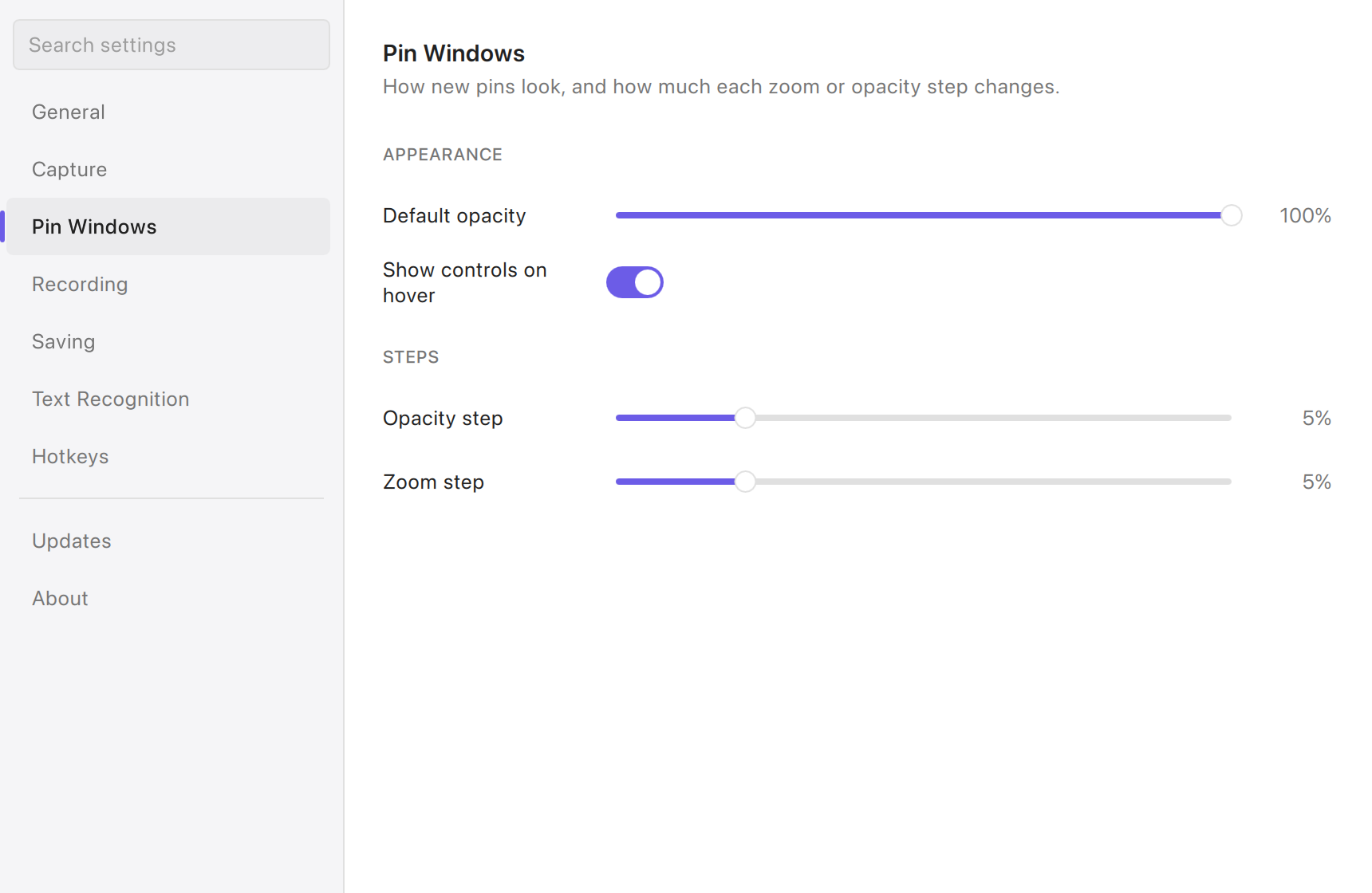
- Advanced is split. Capture gets After Capture, Region Selector and Auto Blur. Pin Windows gets Appearance and Steps.
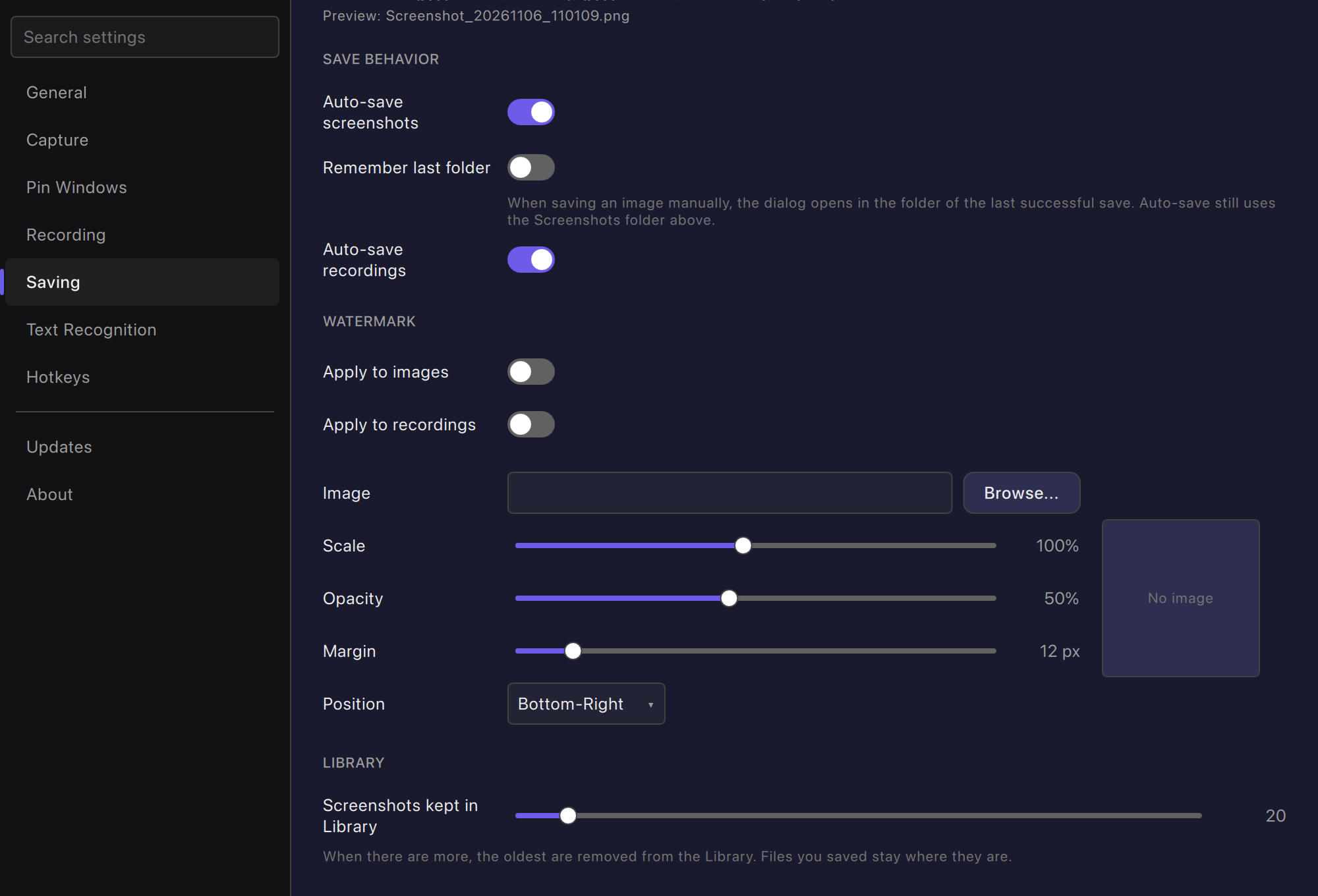
- Files and Watermark become Saving.
- “Max history entries” becomes Saving > Library > Screenshots kept in Library.
- Setting keys, managers and stored values are unchanged.
- Page header: every page except About starts with
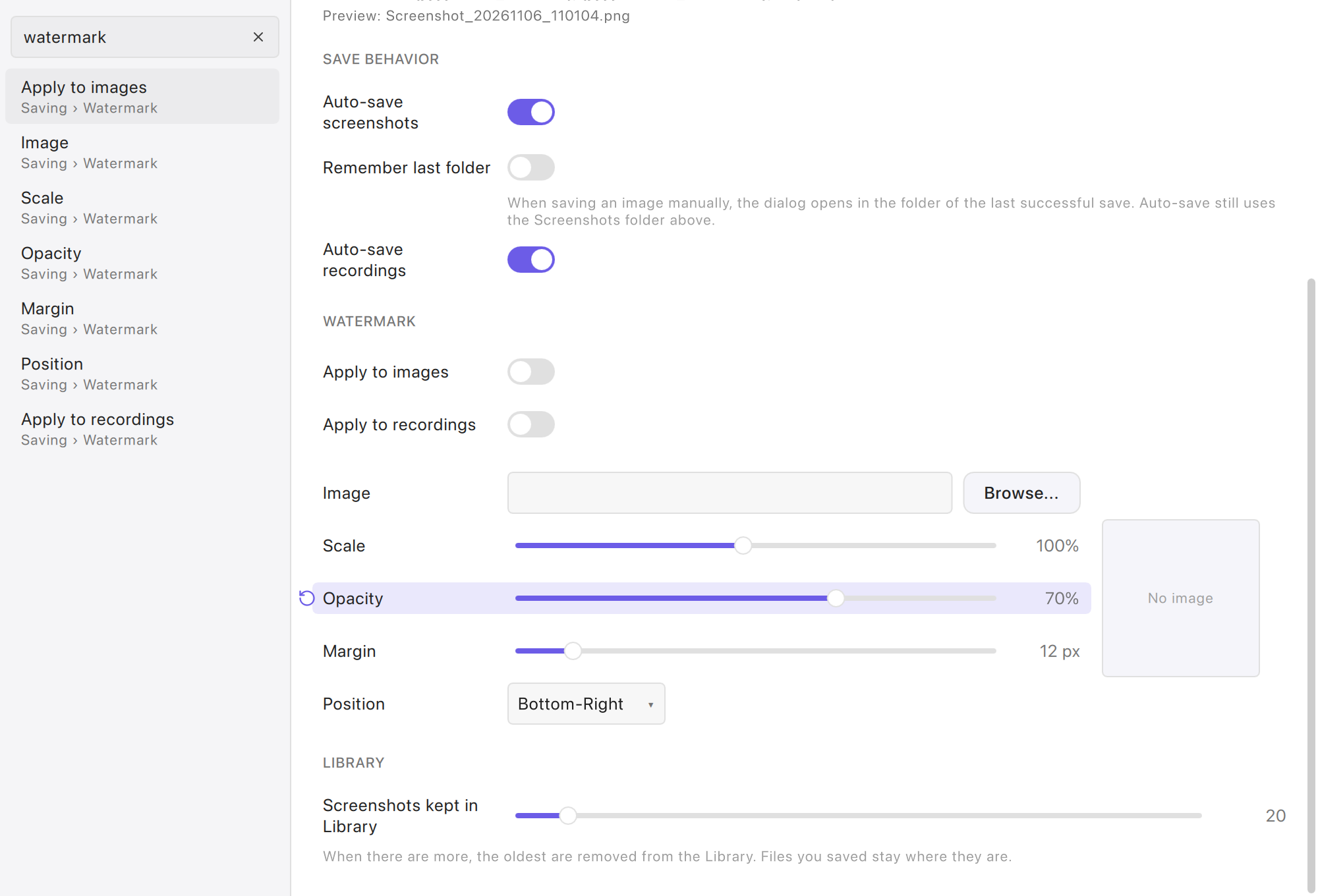
SettingsPageHeader, a title and one sentence. The header can hold a page-wide action, such as Hotkeys’ Restore All Defaults. - Search: a “Search settings” field tops the sidebar (
Ctrl+F/Cmd+F). It finds pages by name, settings by label, section or page (translated and English), and hotkeys by action name. Opening a result goes to the page, scrolls to the row and highlights it briefly.Escclears the search. - Defaults and reset:
- Settings save at once.
- A row with a
resetKeyshows a reset button in its left gutter while its value differs from the manager default;SettingsBackend.resetSettingwrites the default through the property. Hotkeys keep their per-shortcut Reset and Restore All Defaults.
- Label column: 140 px, widened to fit the longest single word of a label (up to 45 % of the row) so long compounds do not break mid-word.
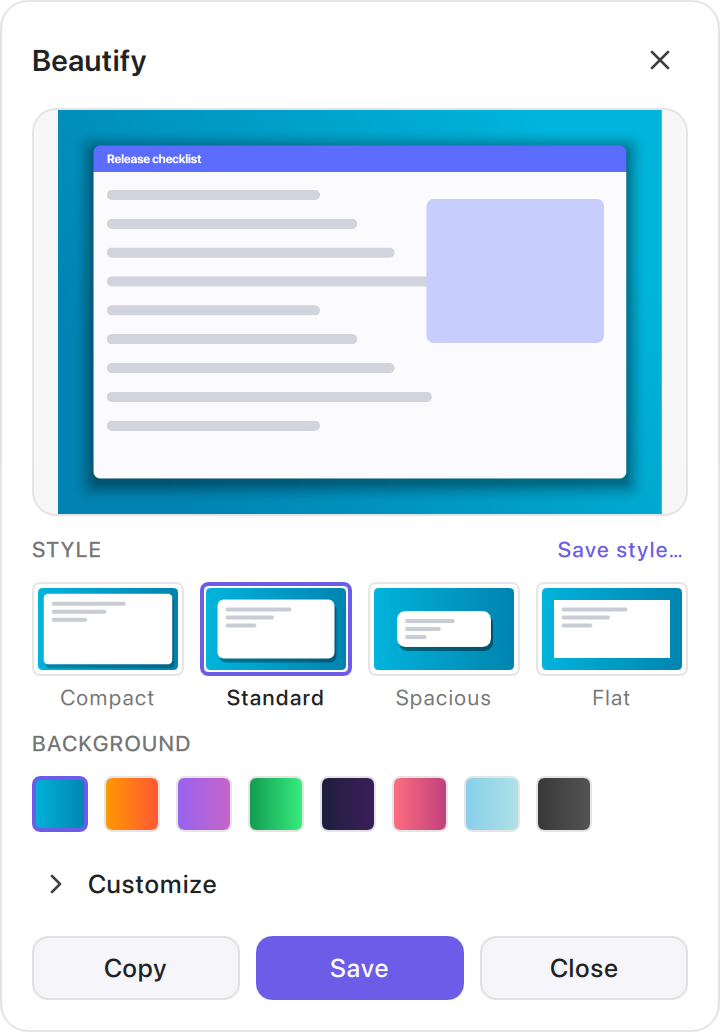
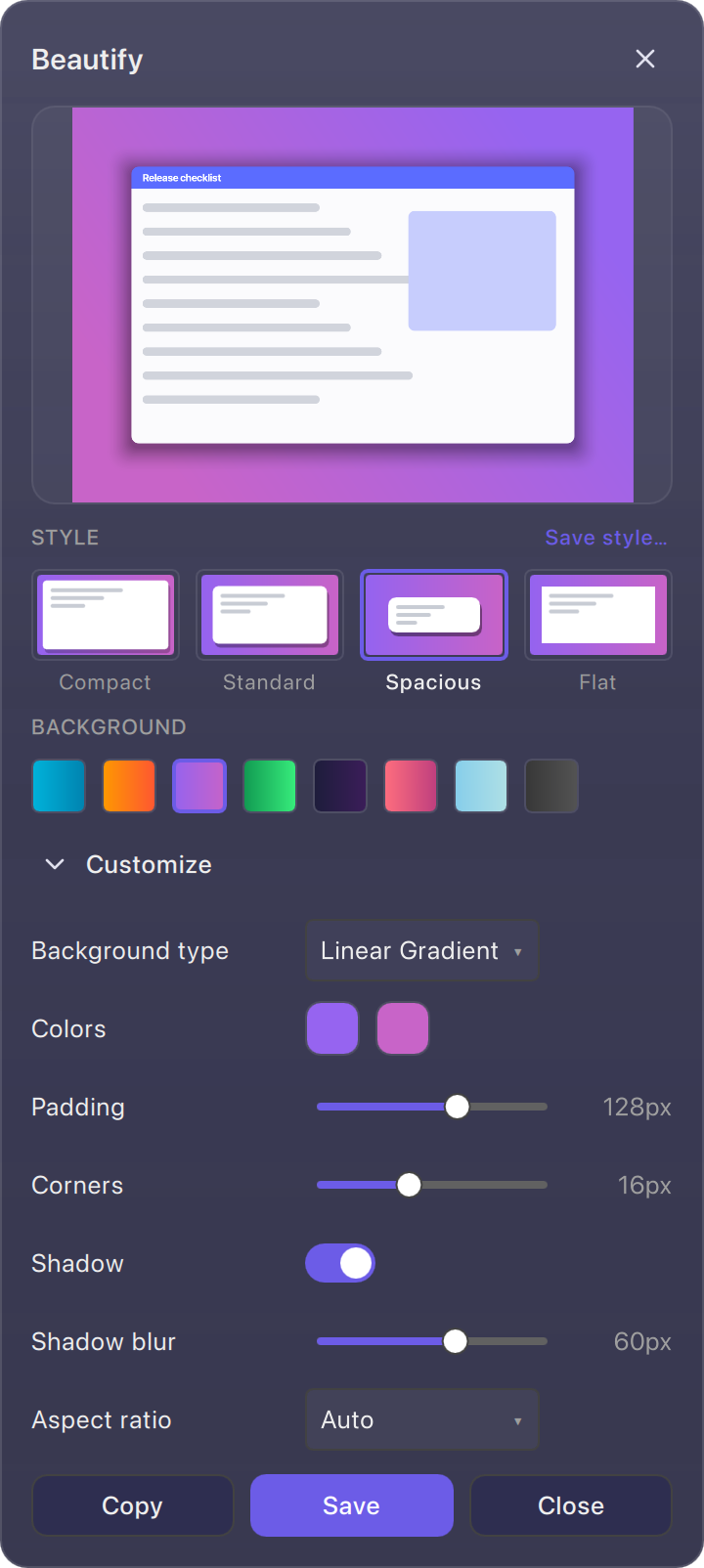
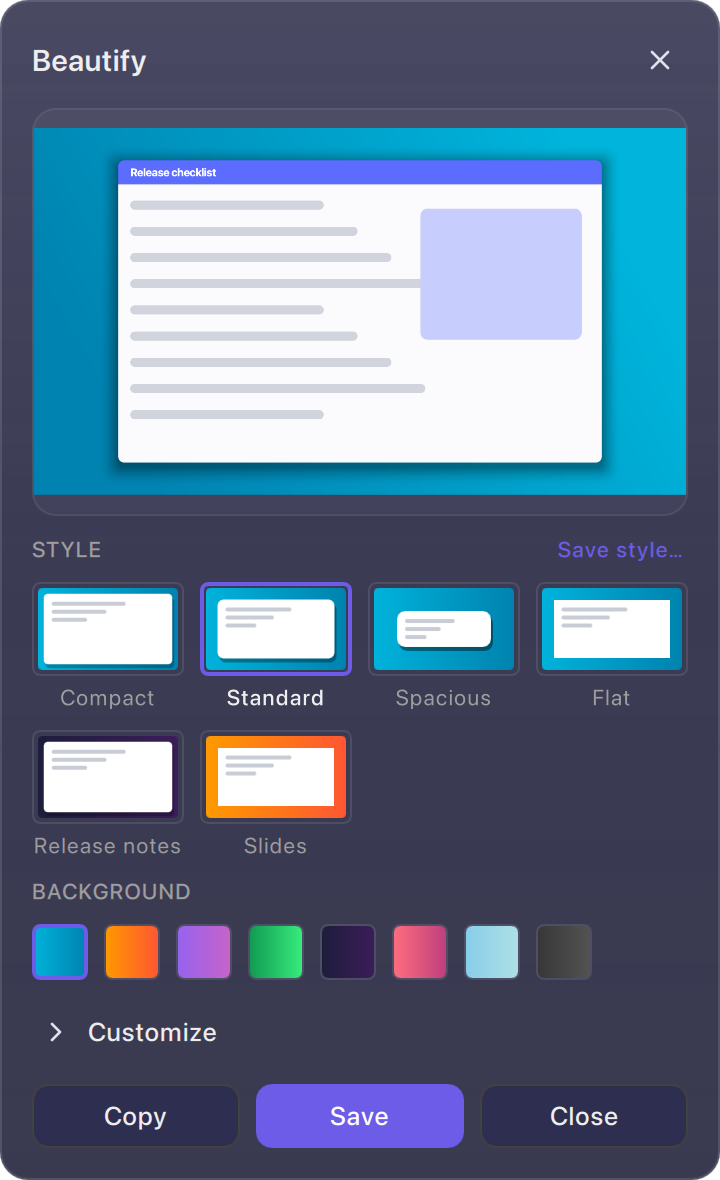
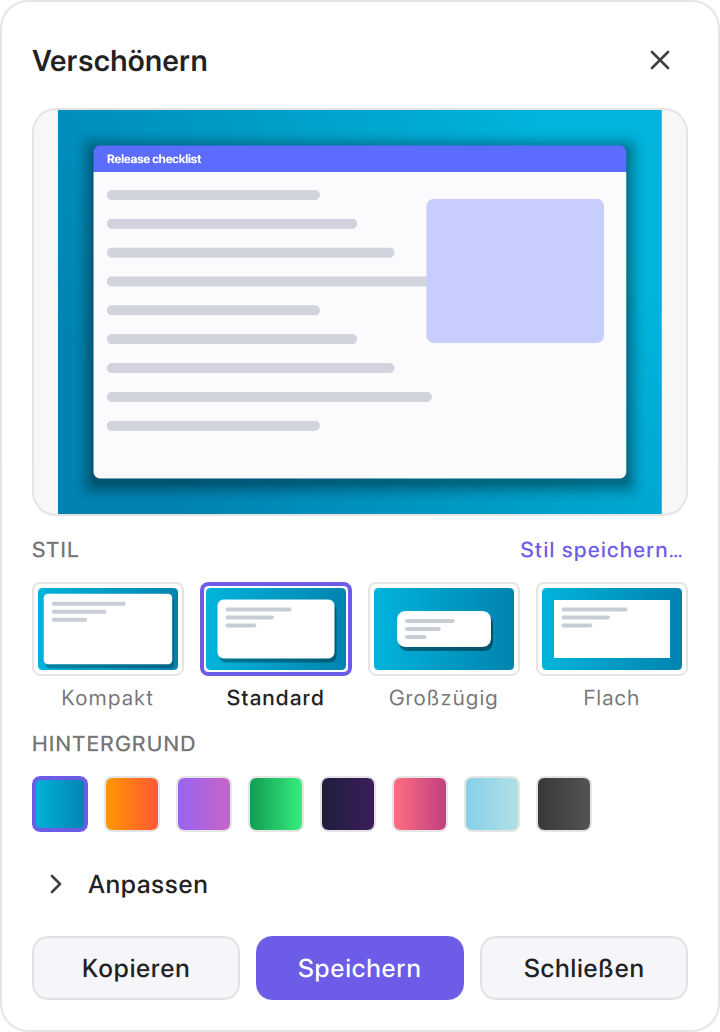
- Beautify, results first:
- The panel shows the preview, then Style, Background and a collapsed Customize.
- The four styles are Compact, Standard (the defaults), Spacious and Flat. A style sets padding, corners and shadow, and leaves the background and ratio alone. The card matching the current values is chosen; otherwise the caption reads Custom.
- The background swatches are the eight named gradients, the same as the recording Canvas.
- Customize lists Background type, Colors, Padding, Corners, Shadow (the shared
SettingsToggle), Shadow blur and Aspect ratio, with no colons. It stays open or closed while the panel is reused. When opening it grows the panel, the panel stays on the screen. - Save style… saves the whole look under a name (inline field;
Esccancels the name, not the panel). Up to 8 saved styles sit below the built-in ones, each with a ✎ to rename (orF2) and a × to delete (orDelete). Two saved styles cannot share a name; a taken name is shown in red and Rename stays disabled. Saving under an existing name updates it.
- Keyboard and names:
- Style cards, swatches, color chips and Customize are Tab stops. Space and Return activate them.
- Each has a button role and a name (“Style: Standard”, “Background: Ocean”). Cards and swatches also report checked.
- A chosen item has a thicker ring as well as the accent colour.
Acceptance matrix
| Check | macOS | Windows | Ubuntu 22.04 X11 beta |
|---|---|---|---|
| Build and repository tests | scripts/run-tests.sh |
Local Windows build passed; focused UI regression 7/7; earlier full baseline and reruns documented in #210 | CI build and tests only |
| Page order, groups, gating, removed pages | Qml_SettingsWindowFeatureGating |
CI tests only | CI tests only |
| Former settings reachable on their new page | Qml_SettingsWindowFeatureGating |
CI tests only | CI tests only |
| Style and background presets, chosen and Custom states | Qml_BeautifyPanelBackend, Qml_BeautifyPanelQml |
CI tests only | CI tests only |
| Per-setting reset, search and reveal, label column | Qml_SettingsWindowFeatureGating |
CI tests only | CI tests only |
| Saved styles | Qml_BeautifyPanelBackend, Qml_BeautifyPanelQml |
CI tests only | CI tests only |
| Moved strings keep their translations | Settings_QmlTranslations |
CI tests only | CI tests only |
| Ordinary and minimum window, light/dark/German | Evidence below (Qml_SettingsEvidence) |
Pending manual pass (#238) | Fixtures on Ubuntu at 2×, light and dark; German not run |
| Physical DPI scales | 2× only | Pending (#238) | Physical 2× only |
| Screen reader names | AX audit passed after #238 fixes (audit); no VoiceOver speech session; Qml_SettingsWindowFeatureGating, Qml_SettingsCombo |
Pending (Narrator) | Not inspected |
Evidence
macOS 27.0.1 / Qt 6.12.0, 2×.
Regenerating the Settings evidence
cd build
SNAPTRAY_SETTINGS_DESIGN_DIR=../docs/assets/images/developer/settings ./bin/Qml_SettingsEvidence screenshots
SNAPTRAY_SETTINGS_DESIGN_DIR=../docs/assets/images/developer/settings SNAPTRAY_SETTINGS_TRANSLATION=$PWD/snaptray_de.qm ./bin/Qml_SettingsEvidence screenshots:light